Connect HubSpot to Stamina
Last updated: September 4, 2026
Connect your HubSpot account to start Stamina workflows from HubSpot activity and perform HubSpot actions automatically.
Before you begin
Stamina account Sign in to the workspace where you want to build the workflow. | HubSpot access Use the HubSpot account you want Stamina to connect to. | Approval permission You must be able to approve the permissions requested by the integration. |
STEP 1
Connect your HubSpot account
1. Open your Profile in Stamina.
2. Select Add account.
3. Find HubSpot and select Connect.
4. In HubSpot, choose the account you want to use, review the requested permissions, and approve the connection.
5. Return to Stamina and confirm that the account shows a Connected status.
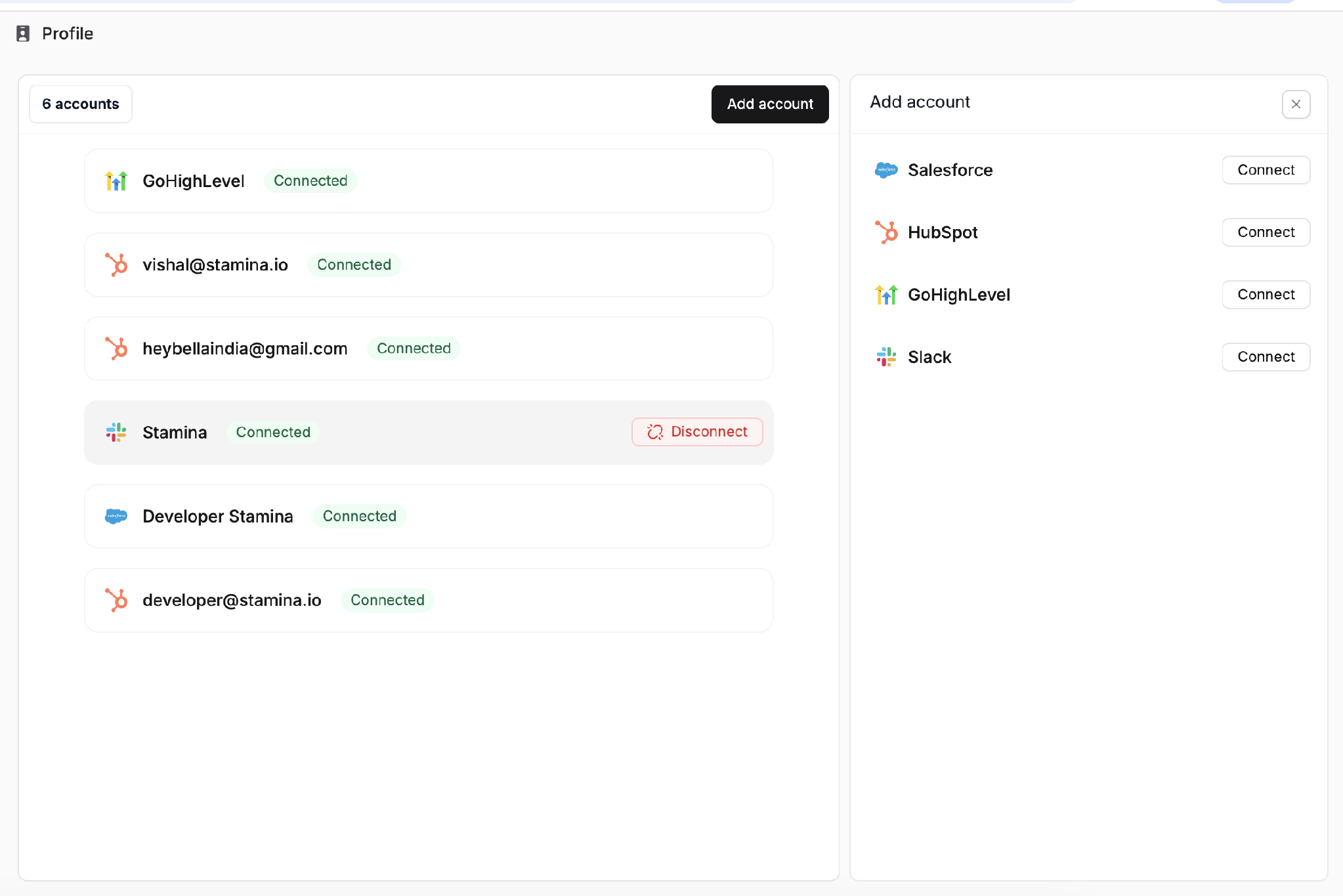
Connect HubSpot from the Add account panel.
STEP 2
Create a workflow
1. Open Workflows in Stamina and select Create workflow.
2. Enter a clear workflow name.
3. Choose Private if only you and people you share it with should have access. Choose Workspace if everyone in the workspace should have access.
4. Select Create.
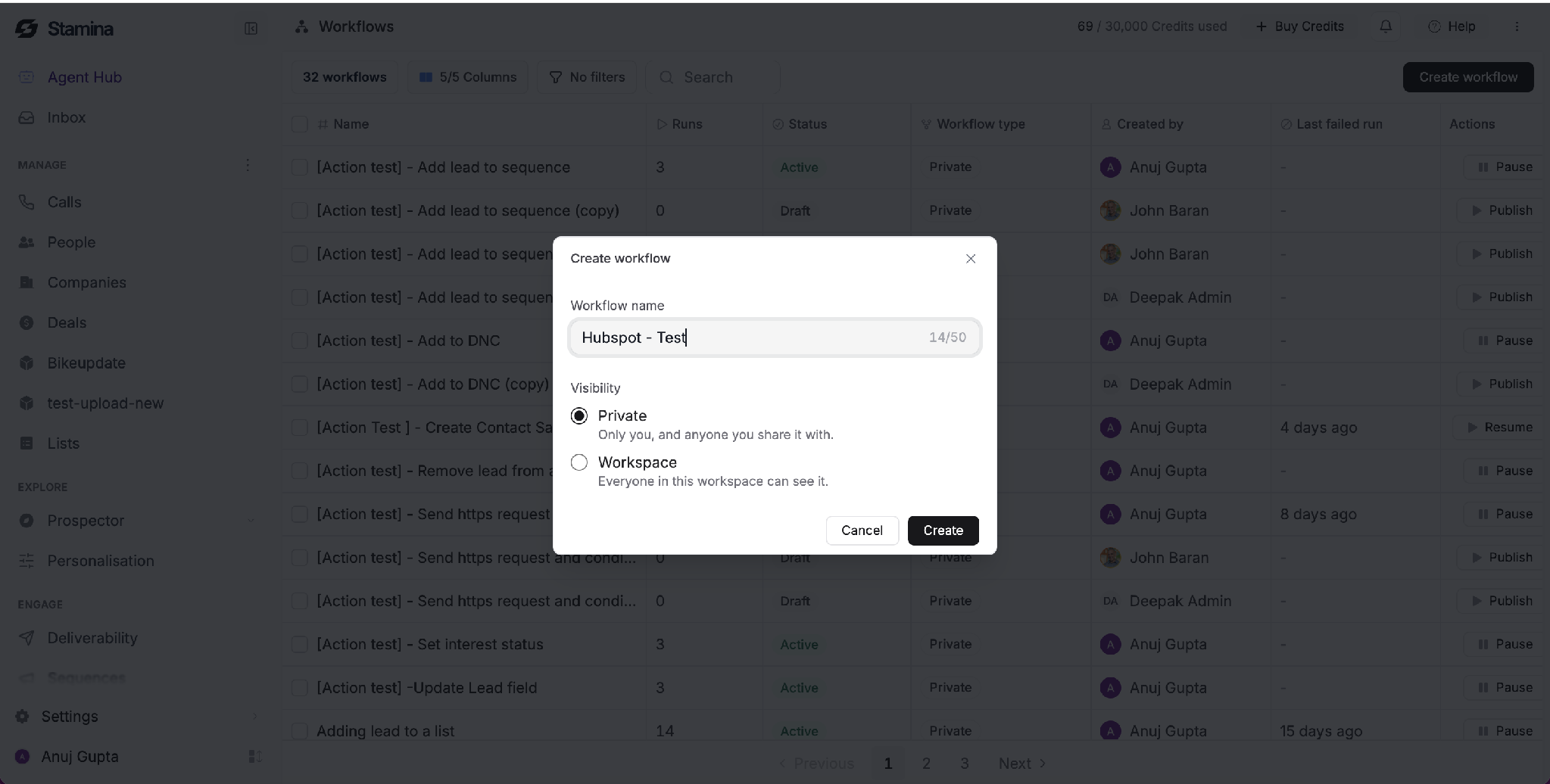
Name the workflow, choose its visibility, and select Create.
STEP 3
Choose HubSpot as the trigger source
A trigger determines when the workflow starts.
1. Select Select a trigger on the workflow canvas.
2. In the trigger panel, scroll to Integrations.
3. Select HubSpot.
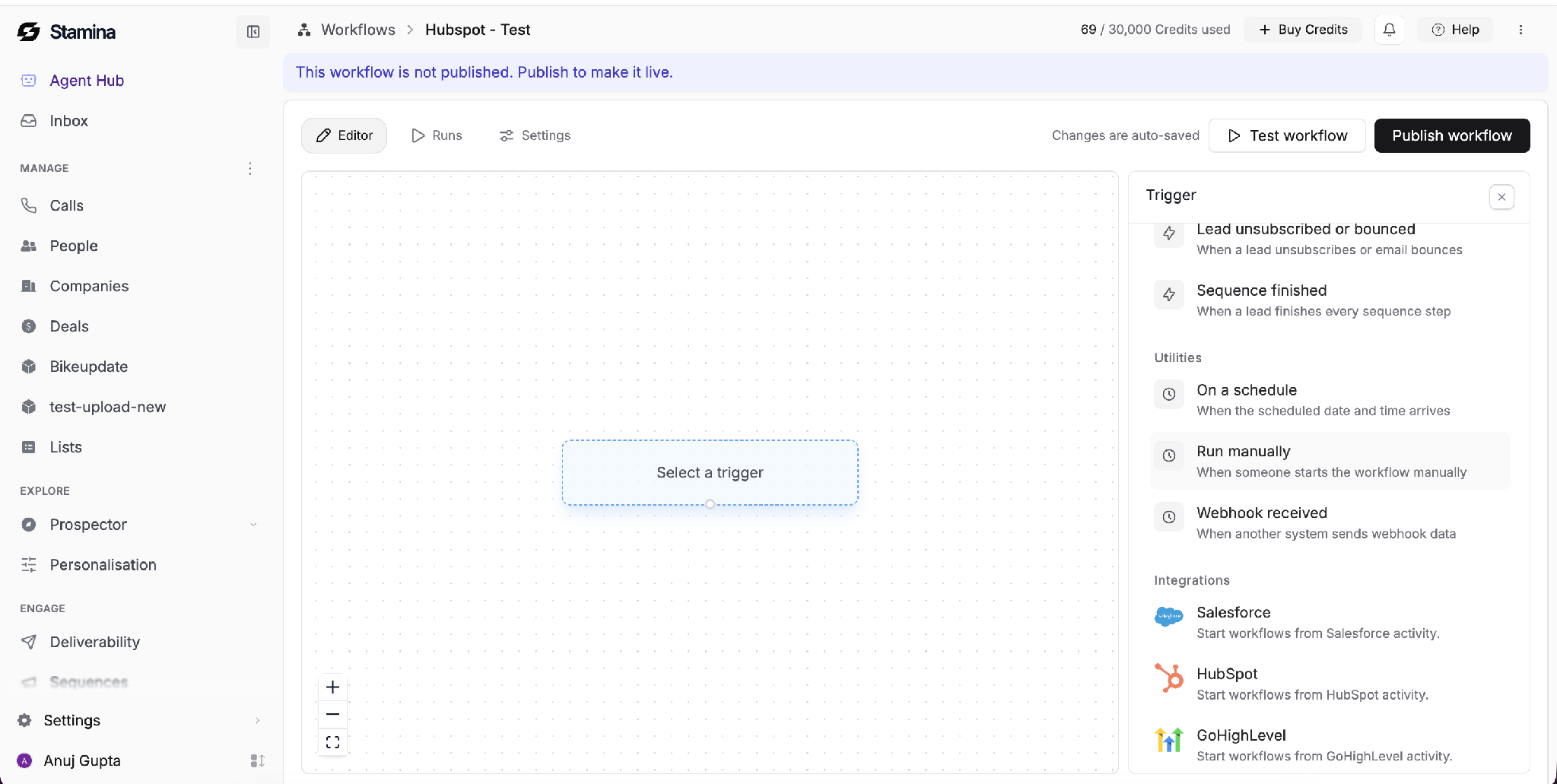
Choose HubSpot under Integrations.
STEP 4
Select a HubSpot trigger
1. Choose the connected HubSpot account.
2. Open the Trigger menu.
3. Select the event that should start the workflow, such as Contact created, Contact updated, or Company created.
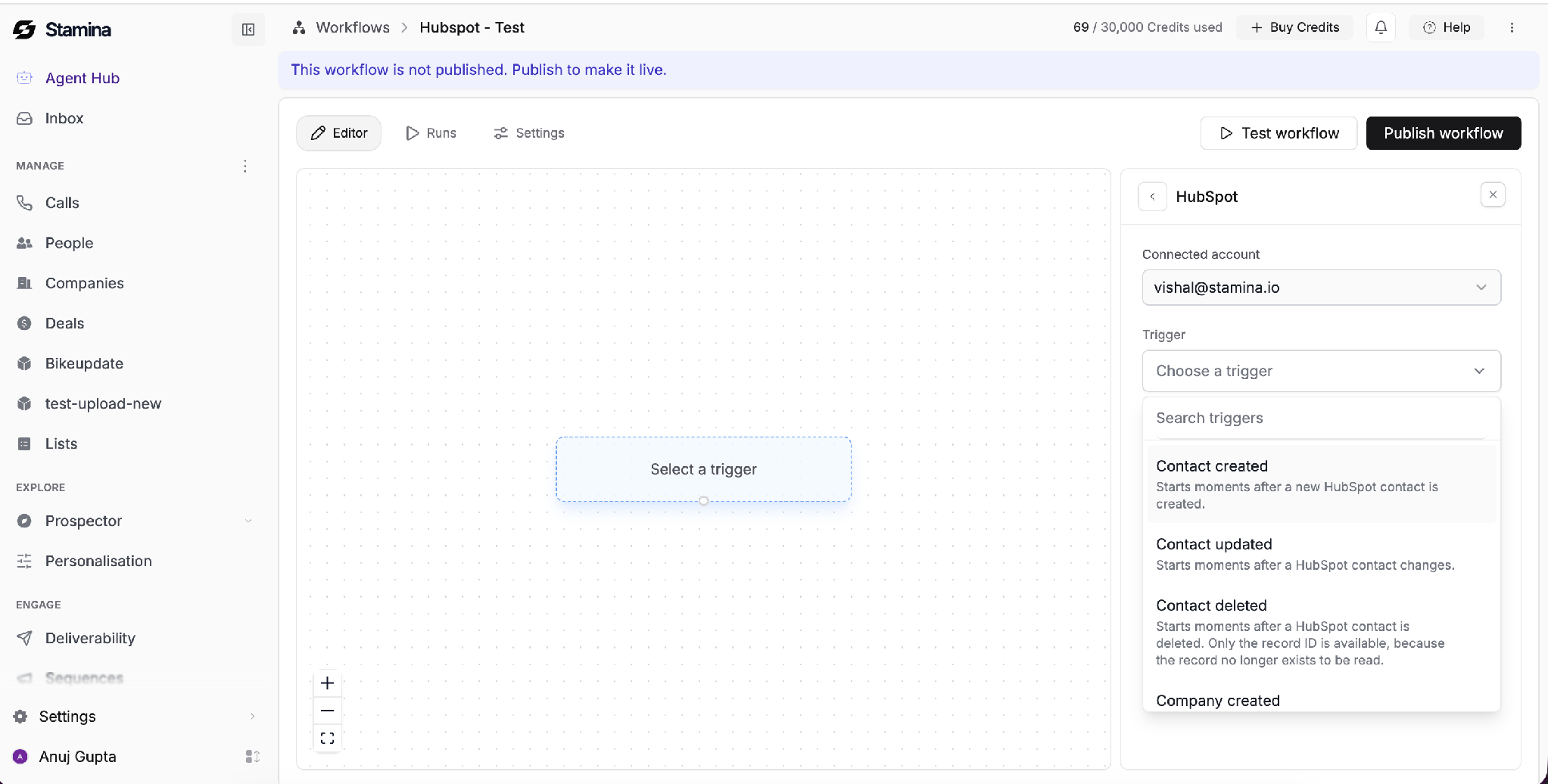
Select the HubSpot event that should start the workflow.
STEP 5
Add a HubSpot action
An action determines what the workflow does after it starts.
1. Select Add a block.
2. Choose HubSpot and confirm the connected account.
3. Select an action, such as creating, finding, or updating a HubSpot record.
4. Complete the required fields for the selected action.
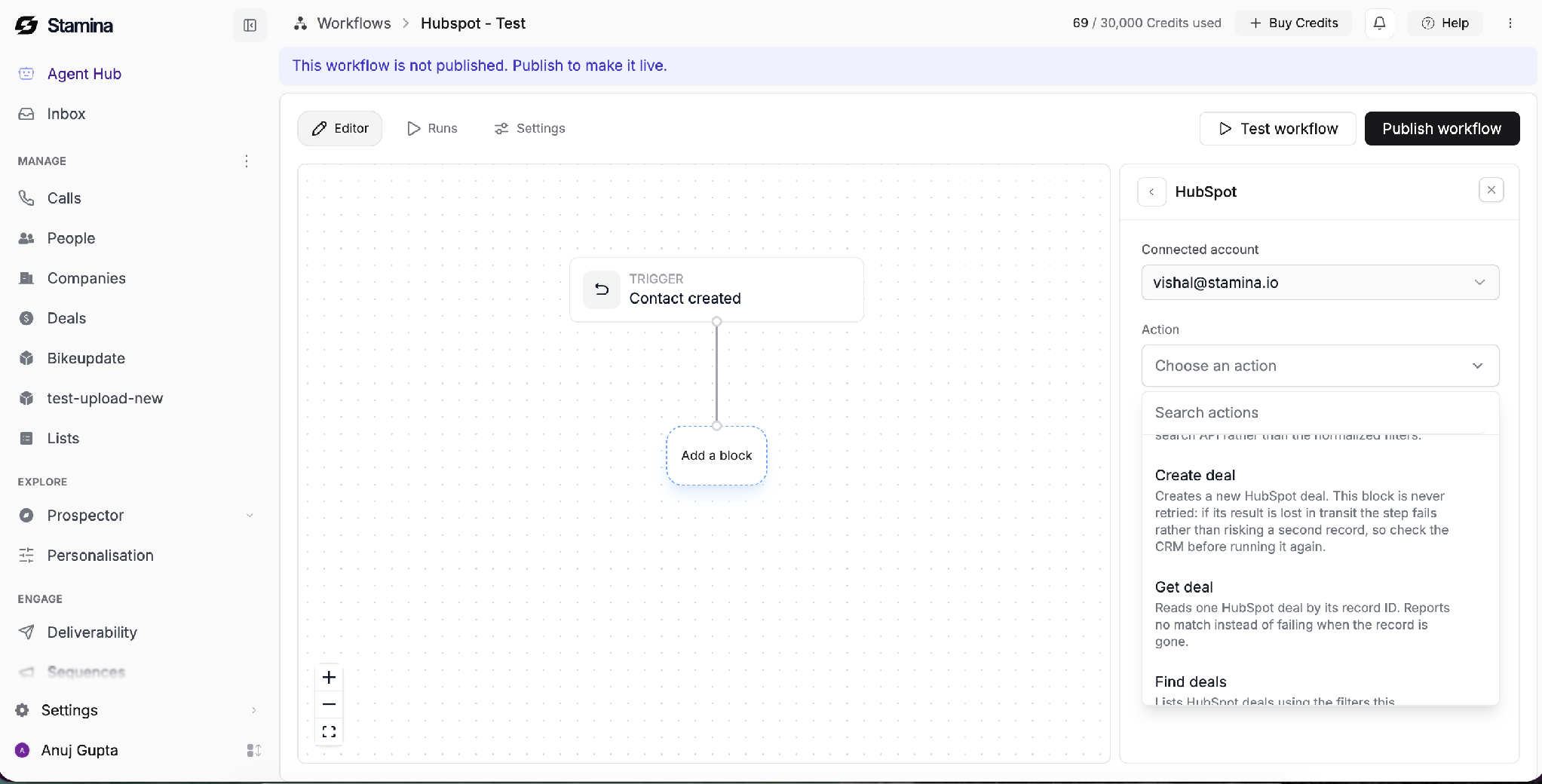
Choose and configure the HubSpot action the workflow should perform.
Test and publish
1. Select Test workflow and confirm that the trigger and actions work as expected.
2. Review the result and correct any configuration errors.
3. Select Publish workflow to make the workflow active.
Manage the connection
You can view or disconnect your HubSpot account from your Stamina profile. Disconnecting the account may stop workflows that depend on it, so review affected workflows before removing the connection.