Generate Data with AI
Last updated: July 12, 2026
Estimated reading time: 4 minutes
Overview
The Use AI feature helps you generate or transform lead data using AI. Instead of manually researching every prospect, you can create custom values for selected leads using your own instructions.
AI-generated data can be used to personalize outreach, enrich existing records, or create custom fields that support your sales process.
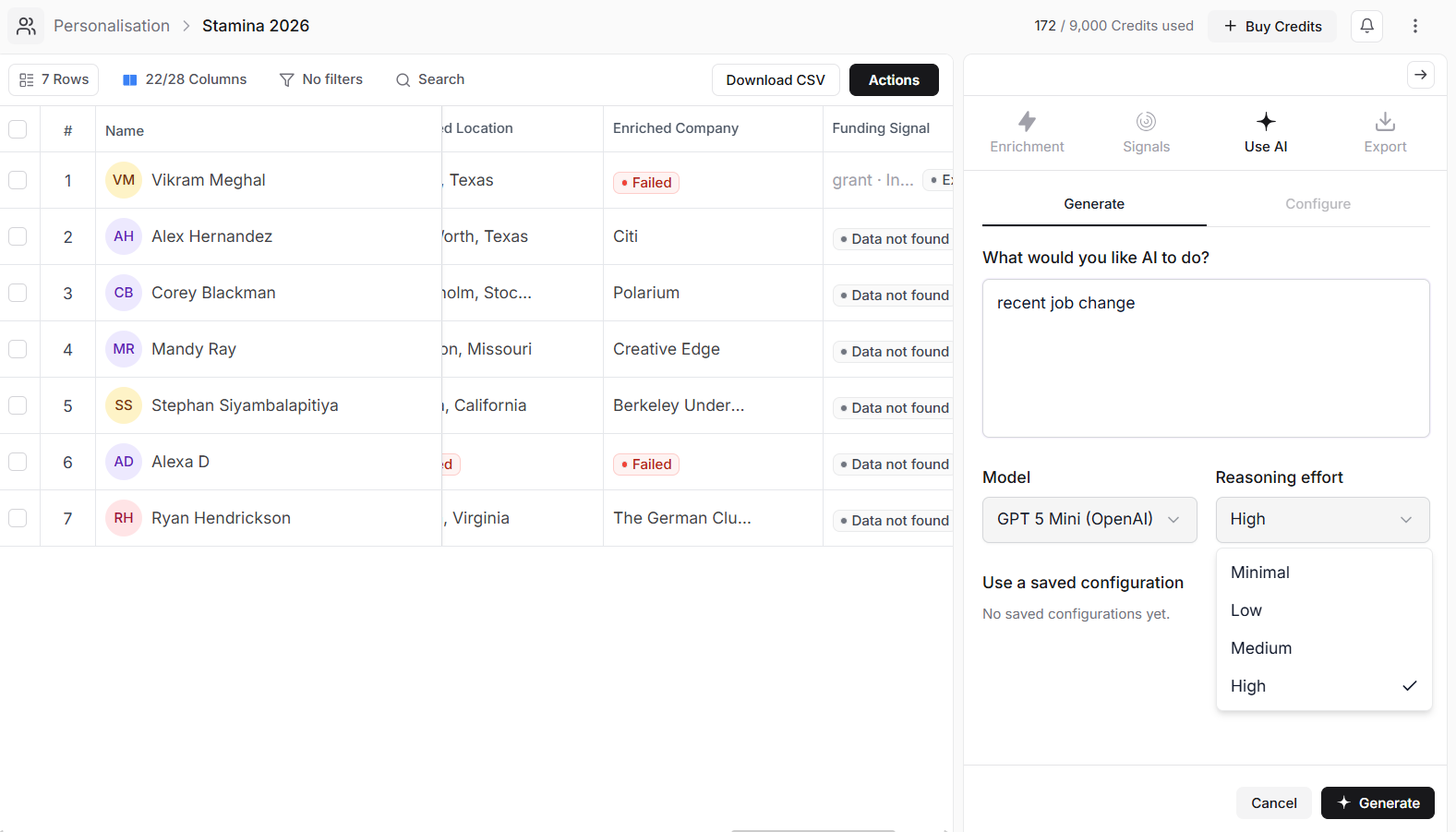
Open the AI Panel
Before generating AI content:
Open a personalization list.
Select one or more leads.
Click Actions in the toolbar.
Select Use AI.
Configure Your AI Task
Before generating data, configure how AI should process your selected leads.
Output Column
Choose the column where the generated content will be saved.
You can either:
Select an existing column.
Create a new column to store the generated values.
AI Prompt
Describe exactly what you want AI to generate.
The more specific your instructions, the more relevant the results will be.
For example, you might ask AI to generate:
Personalized opening lines.
Company summaries.
Value propositions.
Icebreakers.
Custom lead notes.
Select an AI Model
Choose the AI model that best fits your task.
Different models may vary in speed, reasoning capability, and output quality depending on your workspace configuration.
Reasoning Effort
Select how much reasoning AI should apply when generating content.
Choose the level that best matches the complexity of your request.
Generate Content
After configuring your prompt:
Review the output column.
Review your AI instructions.
Click Generate.
The generated values are added directly to the selected column for each lead.
Save Your Configuration
If you regularly perform the same task, enable Save Configuration before generating content.
Saving configurations allows you to reuse the same AI setup without recreating it each time.
This is useful for recurring workflows such as generating first lines, company summaries, or custom lead notes.
Example AI Prompts
Use these examples as a starting point for your own workflows.
Personalized Opening Line
Write a personalized first sentence for a cold email using the prospect's company and job title.Company Summary
Summarize what this company does in one concise sentence.Value Proposition
Write a short value proposition explaining how our solution could help this company.Icebreaker
Create a friendly opening line based on the prospect's company and role.Lead Summary
Summarize this prospect in three short bullet points for a sales representative.Call Preparation
Generate three discovery questions based on the prospect's company and position.Best Practices
Write clear and specific prompts.
Create a new output column when testing prompts.
Review generated content before using it in campaigns.
Save frequently used configurations to speed up future workflows.
Combine AI-generated content with enriched lead data and buying signals for more relevant outreach.