Managing Search Results
Last updated: July 12, 2026
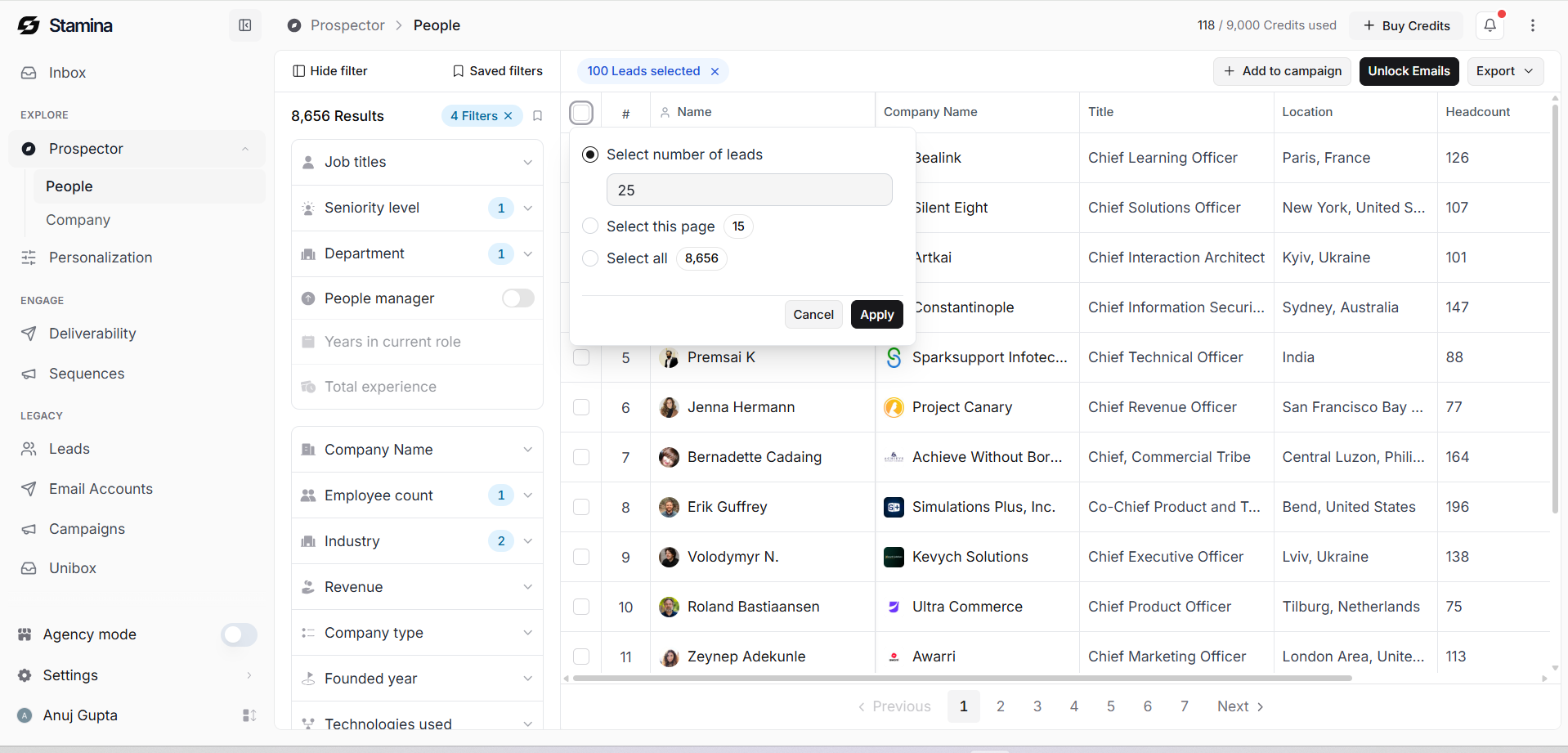
After running a search, Prospector displays matching people or companies in a results table. From here, you can review prospects, select the records you want to work with, unlock email addresses, export your results, or add qualified leads to your outreach workflow.
The results table is designed to help you move from prospect discovery to campaign preparation with just a few steps.
Review your results
Before taking action, review the search results to make sure they match your target audience.
The results table displays key information such as:
Name
Company
Job Title
Location
Company Size
Available Contact Information
Use the search bar, saved filters, or additional filters to refine your results if needed.
Select prospects
Use the checkbox beside each record to select the prospects you want to work with.
You can select:
Individual prospects
Multiple prospects
All visible results
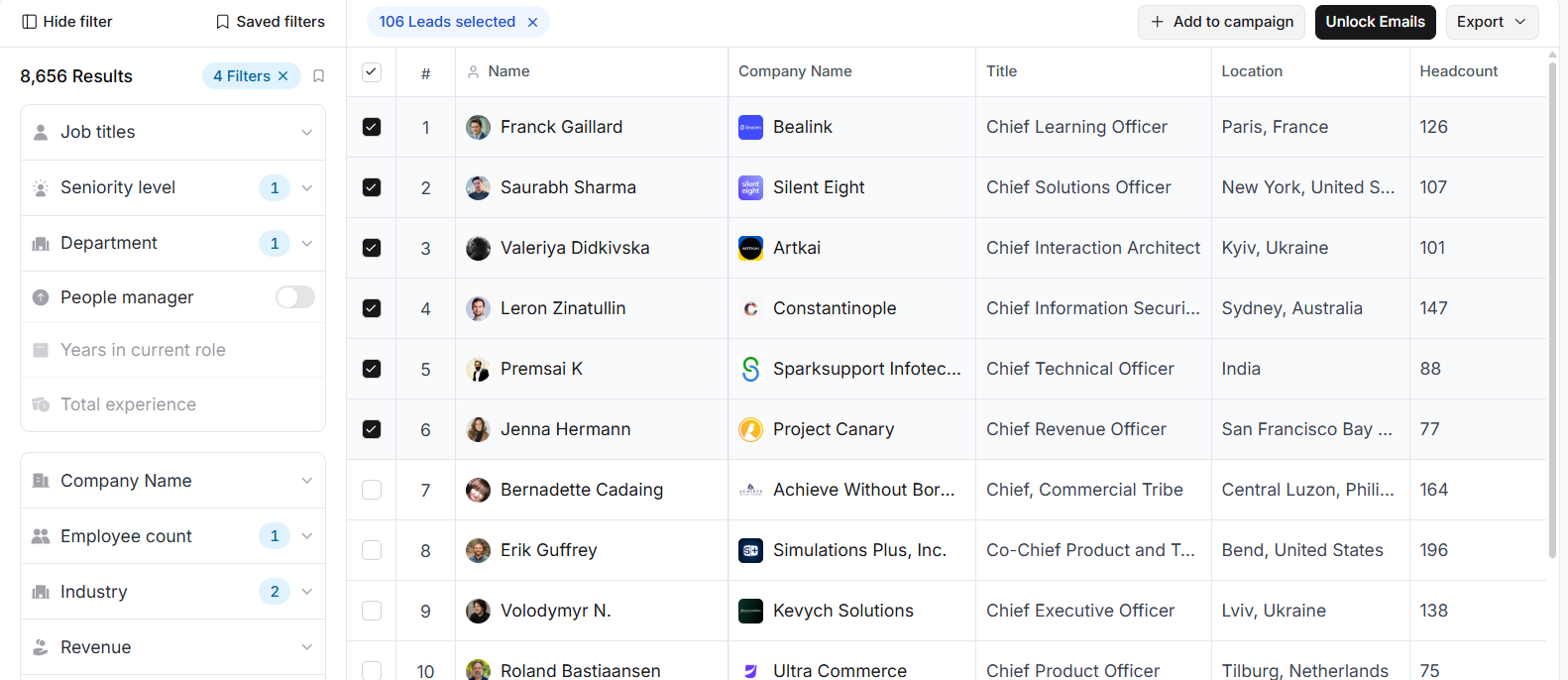
Once selected, additional actions become available from the toolbar.
Unlock email addresses
If a prospect's email address hasn't been revealed, select the record and click Unlock Emails.
Only the selected prospects are unlocked, helping you control credit usage and reveal contact information only for the leads you intend to use.
Unlocked email addresses are immediately available for exporting or adding to campaigns.
Export your results
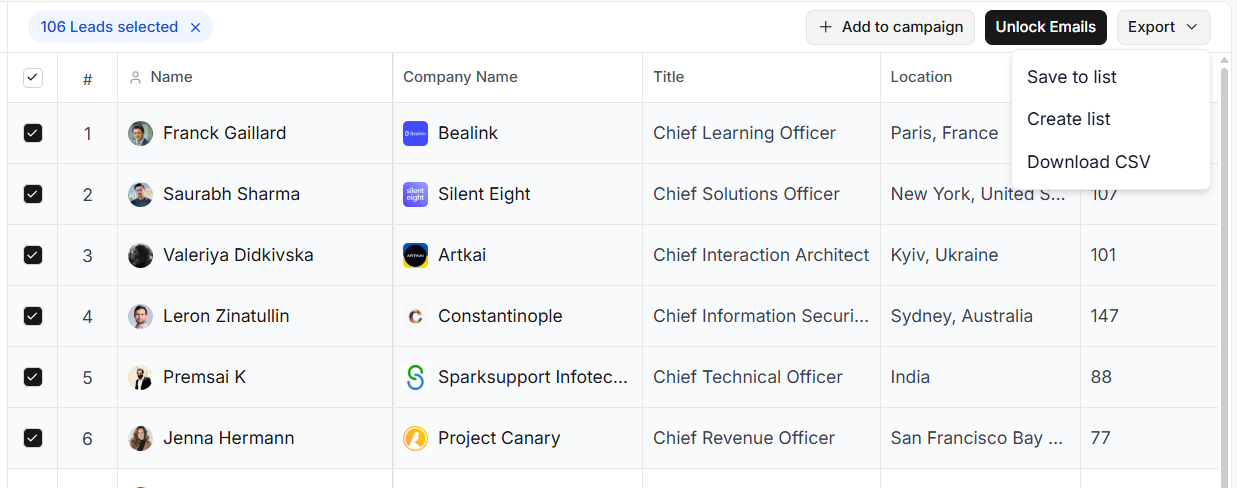
Click Export to choose how you'd like to use your selected prospects.
Available options include:
Save to List – Add the selected prospects to an existing list.
Create List – Create a new list and save the selected prospects.
Download CSV – Export the selected records as a CSV file.
Saving prospects to a list is useful when you want to continue enriching or organizing them before launching outreach.
Add prospects to a campaign
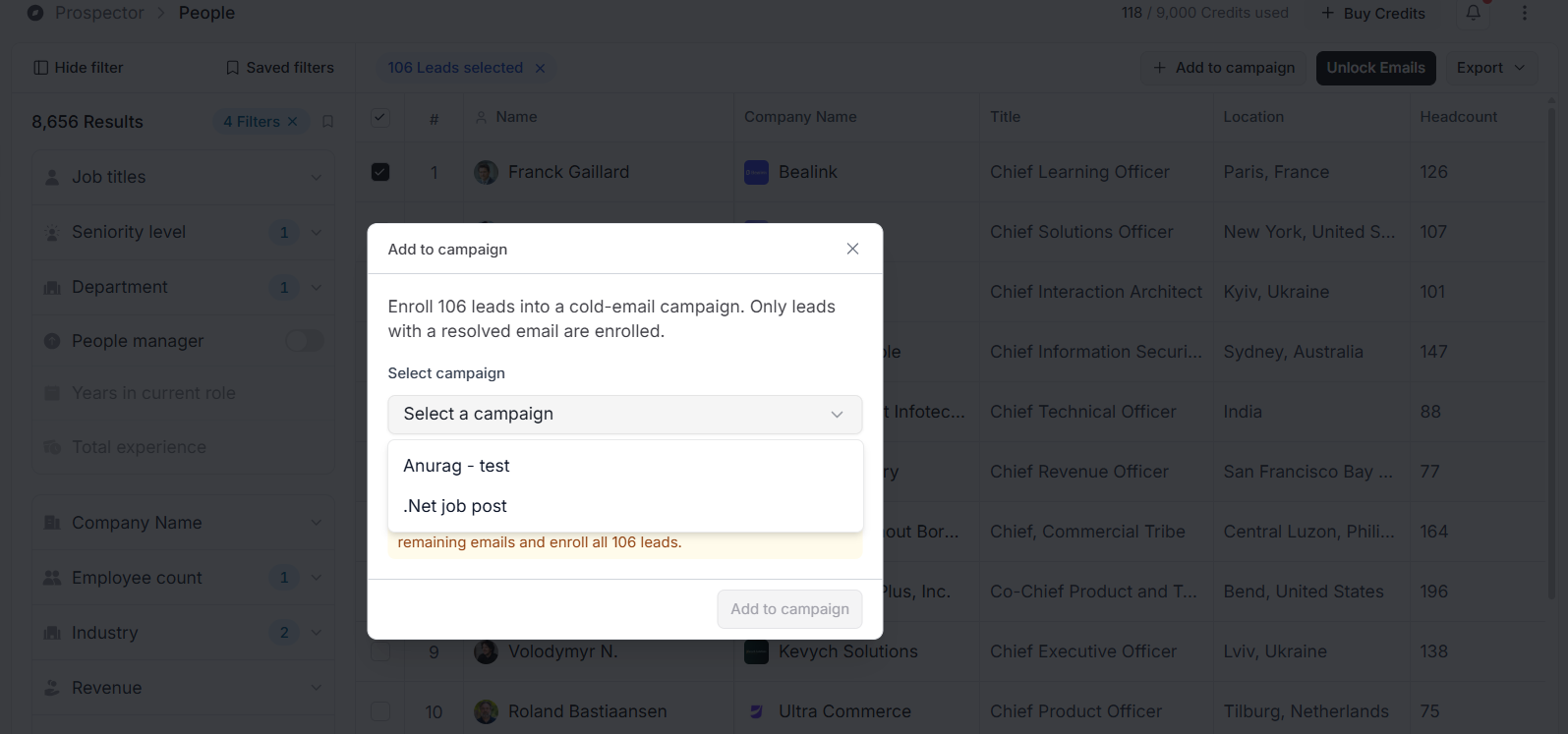
You can also send selected prospects directly to an existing campaign.
To do this:
Select one or more prospects.
Click Add to Campaign.
Choose the destination campaign.
Decide whether to unlock missing email addresses before adding the leads.
If Unlock missing emails first is enabled, Stamina reveals email addresses before adding prospects to the campaign.
If the option is disabled, only prospects with already unlocked email addresses are added.
Understanding credit usage
Credits are only used when you unlock email addresses.
Searching, filtering, and reviewing results do not consume credits.
Before unlocking emails, review your selected prospects to ensure they match your ideal customer profile..
Best practices
Review your search results before unlocking contact information.
Select only qualified prospects to make the best use of your credits.
Save prospects to lists if you plan to enrich or organize them later.
Export only the records you need instead of downloading every search result.
Double-check the destination campaign before adding prospects.
💡 Prospecting Tip
"Efficiency is doing things right; effectiveness is doing the right things."
— Peter Drucker
Spending a few extra minutes reviewing and qualifying prospects before unlocking emails or launching campaigns often leads to better outreach performance and more meaningful conversations.