Managing Conversations
Last updated: July 12, 2026
The Inbox allows you to view, manage, and respond to campaign replies without leaving Stamina. Every conversation is displayed as an email thread, making it easy to review past interactions and continue the discussion.
Open a conversation
To view a reply:
Go to Inbox.
Click the conversation you want to open.
The complete email thread opens in the conversation panel.
The selected conversation displays the latest reply along with previous messages in the thread.
Review conversation details
Each conversation includes key information to help you quickly understand the context.
You can view:
Sender name
Sender email address
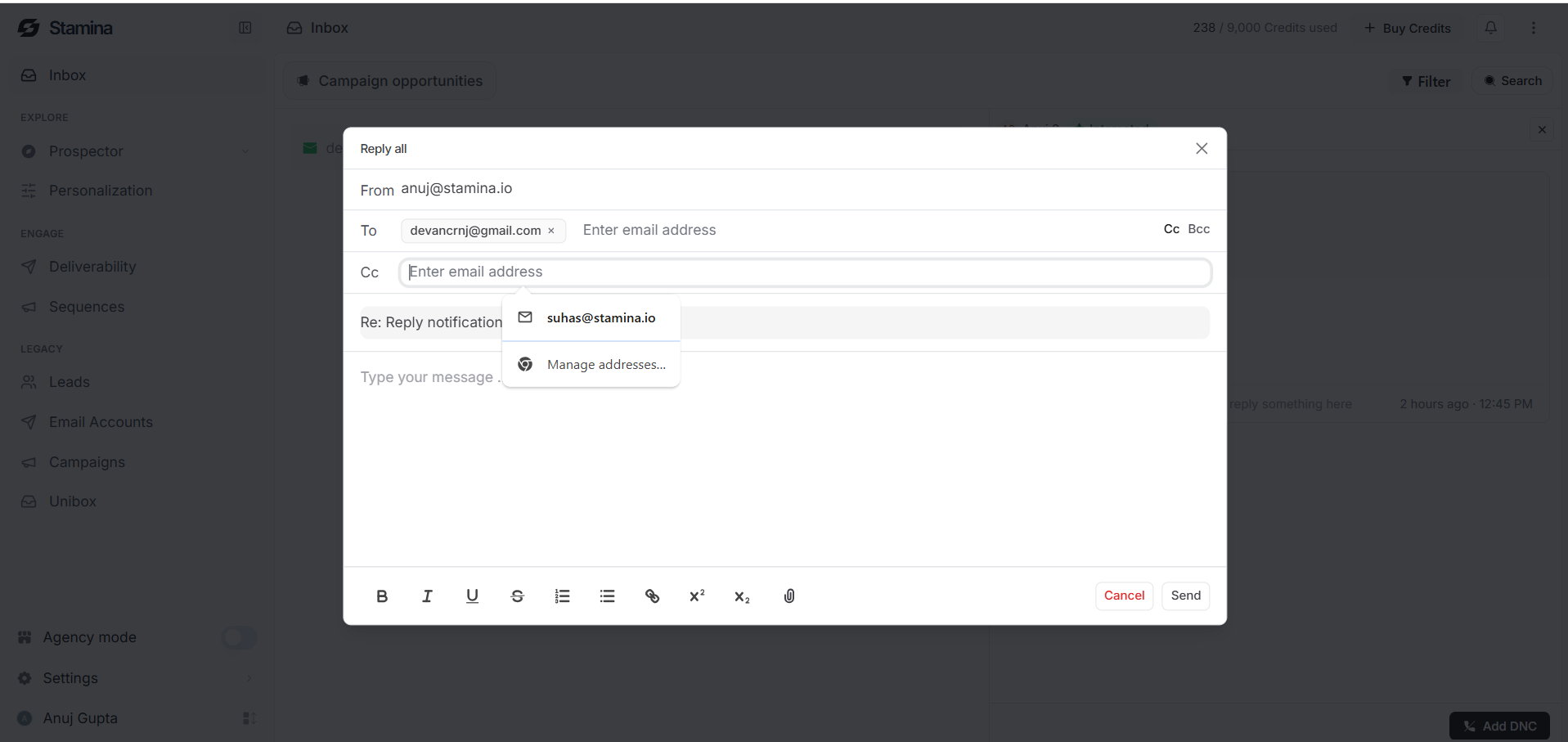
Recipients (To and Cc)
Subject line
Date and time of the reply
Full email message
This allows you to review the conversation before responding.
View conversation history
Replies are displayed as a threaded conversation.
Expand previous messages to:
Review earlier emails.
Understand the full context.
Avoid asking questions that have already been answered.
Keeping conversations in a single thread makes follow-ups more natural for both you and your prospects.
Reply to a conversation
You can respond directly from the Inbox.
To send a reply:
Open the conversation.
Click Reply.
Compose your message.
Send the email.
Your reply remains part of the existing email thread, allowing prospects to continue the conversation without starting a new one.
Forward a conversation
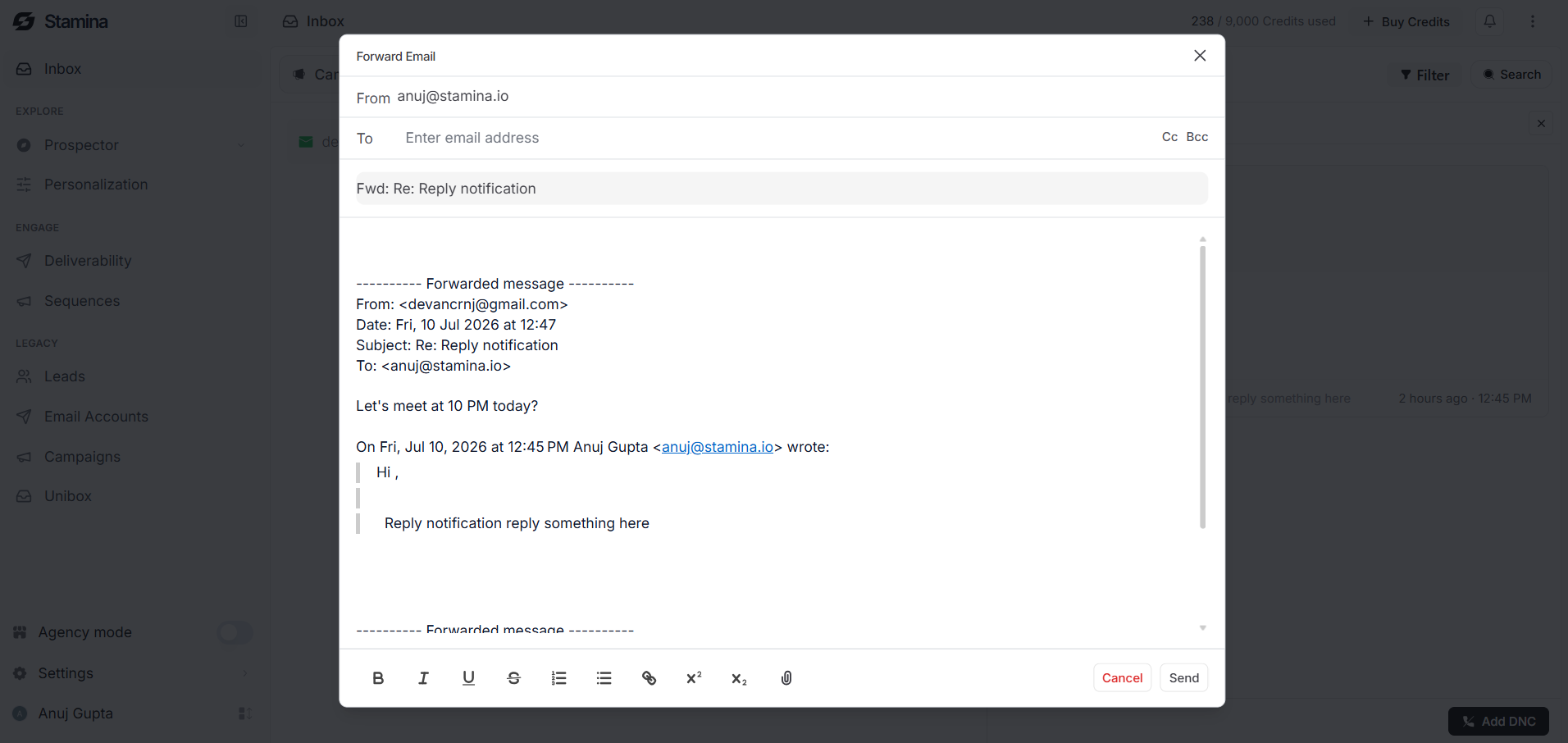
If another team member needs to review a reply, you can forward the conversation.
To forward an email:
Open the conversation.
Click Forward.
Enter the recipient's email address.
Send the forwarded message.
This is useful when handing conversations to another teammate or sharing important customer responses.
Add a contact to Do Not Contact (DNC)
If a prospect requests that you stop contacting them, you can immediately add them to your Do Not Contact (DNC) list.
To add a contact to DNC:
Open the conversation.
Click Add DNC.
Confirm your action.
Future campaigns will respect the DNC status and prevent additional outreach to that contact.
Understand AI reply badges
Each conversation includes an AI-generated status badge that helps you understand the nature of the reply at a glance.
For example:
Interested – The prospect has shown positive intent and may be ready for a follow-up.
Wrong Person – The email reached someone who is not the intended contact.
These labels help you prioritize conversations without reading every reply first.
Tips for managing conversations
Review new replies regularly.
Respond to Interested prospects as quickly as possible.
Read previous messages before replying.
Use Forward when another team member should continue the conversation.
Add contacts to Do Not Contact (DNC) when requested.