Quickstart guide
Last updated: May 4, 2026
This guide walks you from a blank workspace to a live campaign. Follow the steps in order — each one depends on the previous.
Step 1 — Set up your email infrastructure
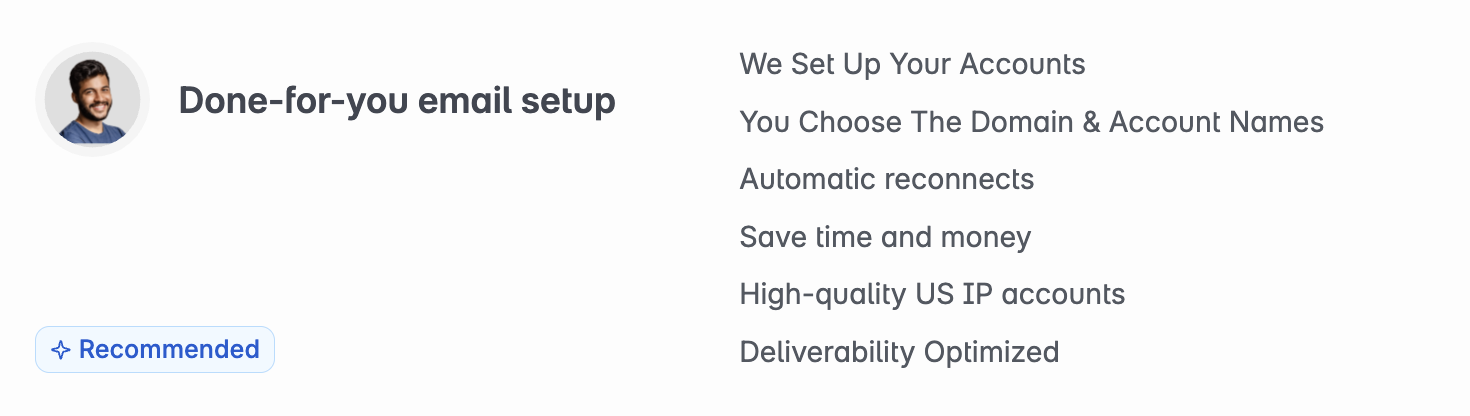
Before sending any emails, you need outreach domains and inboxes that are authenticated and warmed up to ensure they land in your prospect's inbox. Stamina handles all of this via Done-For-You (DFY) setup.
To get started, provide your GTM strategist with:
Your primary domain (e.g.
yourbrand.com)Subdomain names for outreach (e.g.
trystamina.io,getstamina.io)1–4 sender first/last name combinations
Stamina will provision domains, create 3–4 inboxes per domain, configure SPF, DKIM, and DMARC, and start warmup within 12 hours.
Step 2 — Connect your email accounts
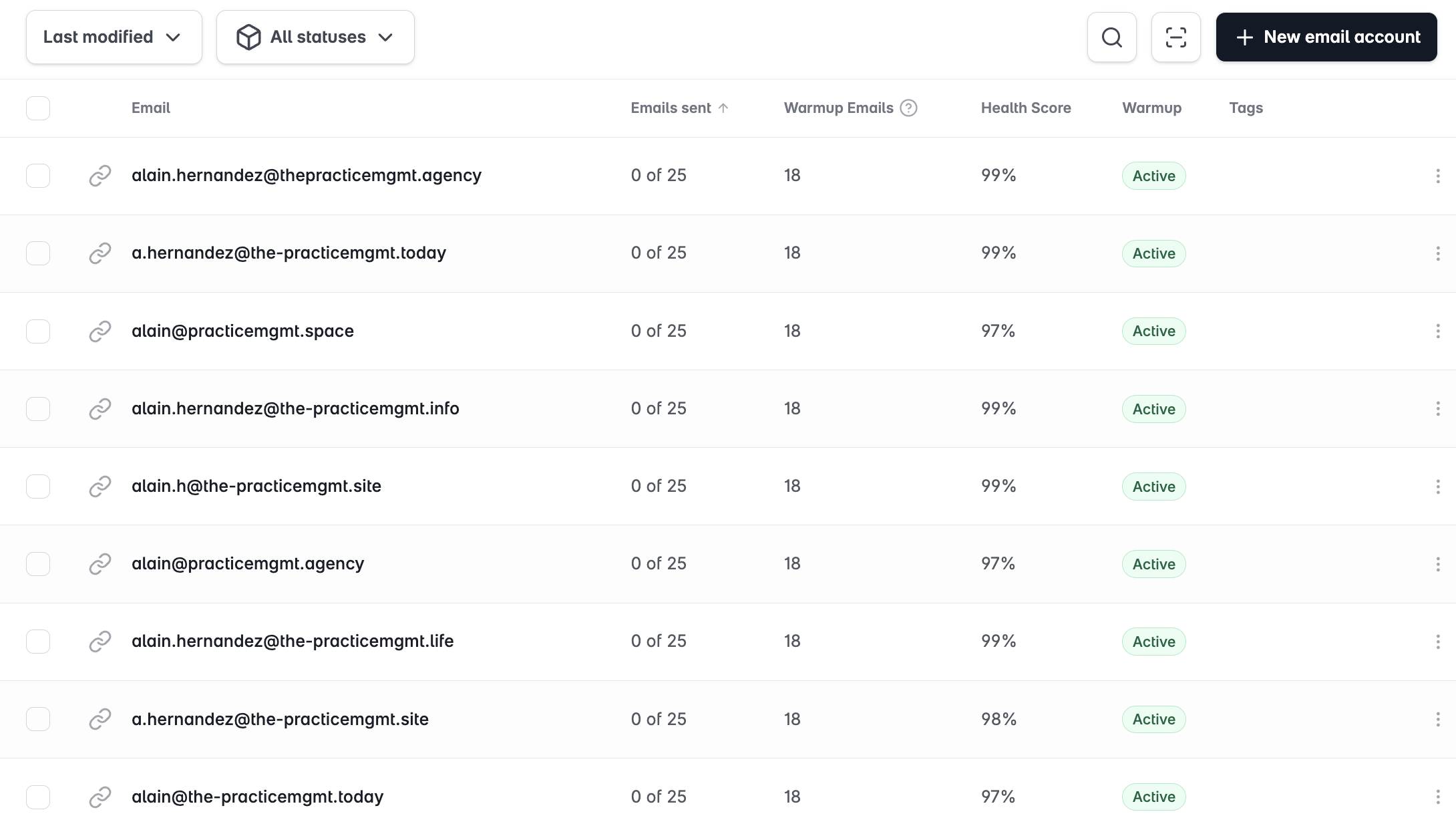
Once inboxes are provisioned, connect them to Stamina so campaigns can send through them.
Go to Email Accounts → Add New.
Select Connect existing accounts.
Choose OAuth (recommended for Google Workspace) or App Password.
Follow the connection flow and repeat for each inbox.
Step 3 — Create a campaign
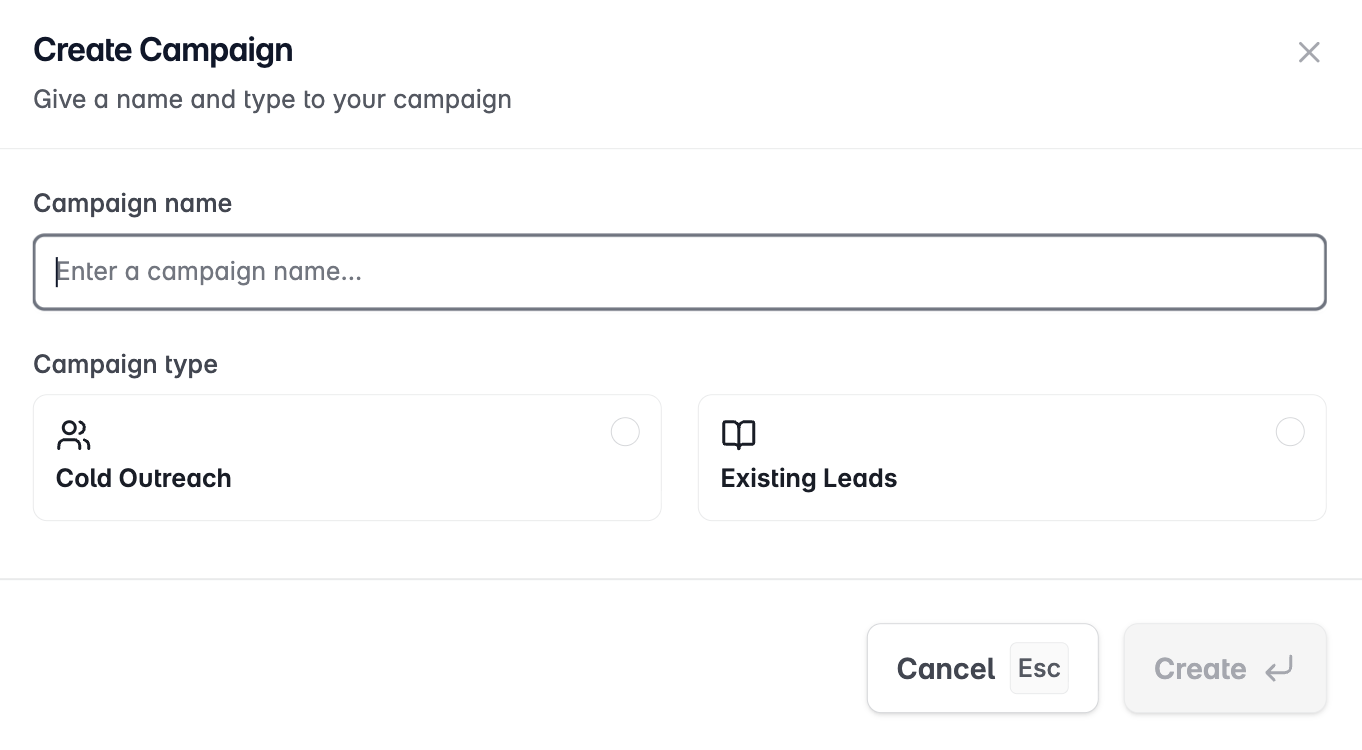
Go to Campaigns → New campaign.
Enter a campaign name (be descriptive — e.g. "US Founders – SaaS – Funding Signal").
Select a type: Cold Outreach (AI-powered, uses Lead Finder) or Existing Leads (import your own CSV).
Step 4 — Define your pitch
In the Pitch tab, enter your website domain and click Generate. Zara AI produces your company description, ICP, and buyer personas. Edit and save before moving on — this powers AI personalization downstream.
Step 5 — Set your targeting
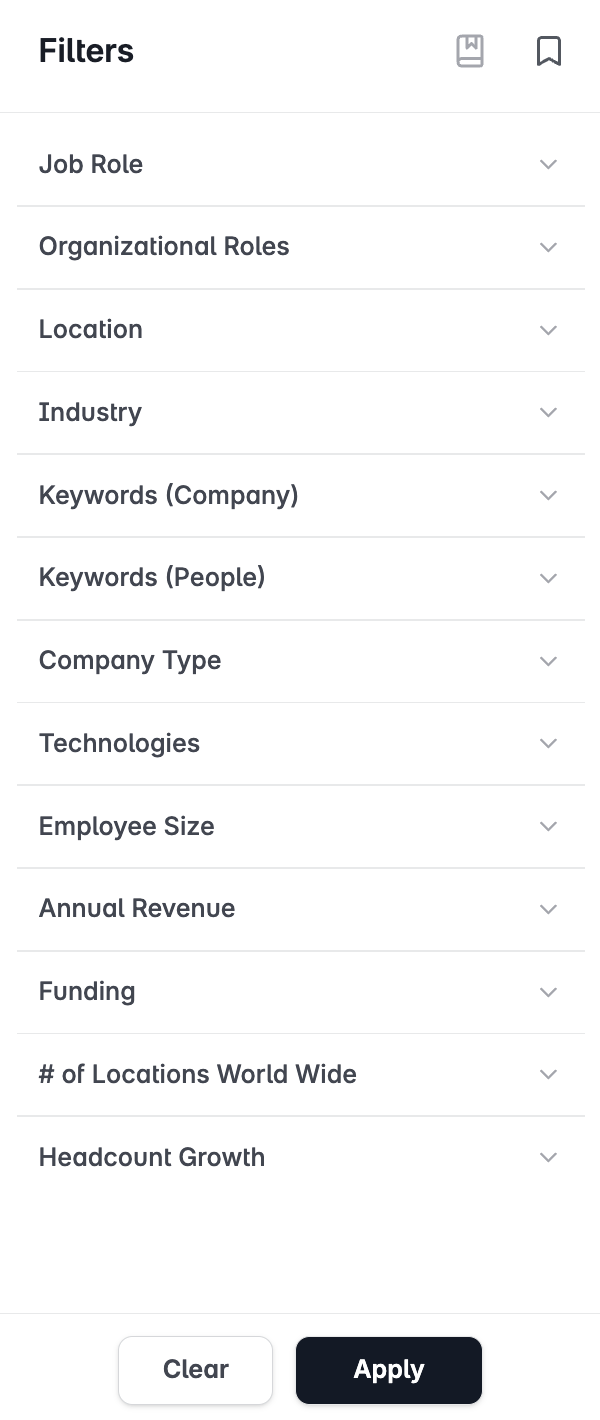
In Targeting, apply filters to define your audience. Then open Addressable Audience to validate the total reachable count before spending credits.
Step 6 — Configure outreach and personalization
In Outreach, select one personalization signal (Funding, ICP fit, Job post, or Case study). Set the number of leads to enrich, add your sign-offs and CTAs, then click Confirm & Proceed. Enrichment runs automatically.
Step 7 — Review your Lead List
Once enrichment completes, review your leads in Lead List. Preview personalization output per lead and handle any unenriched contacts before building your sequence.
Step 8 — Write your sequence
In Sequences, add email steps with subject lines, body copy, and delays. Use variables like {{firstName}}, {{companyName}}, and {{email_sequence}} to personalize at scale. Add A/B variants to test messaging.
Step 9 — Configure settings and launch
In Options, assign sending accounts (or tags), set daily limits, and confirm your sending schedule. Click Launch. Stamina begins sending according to your schedule.
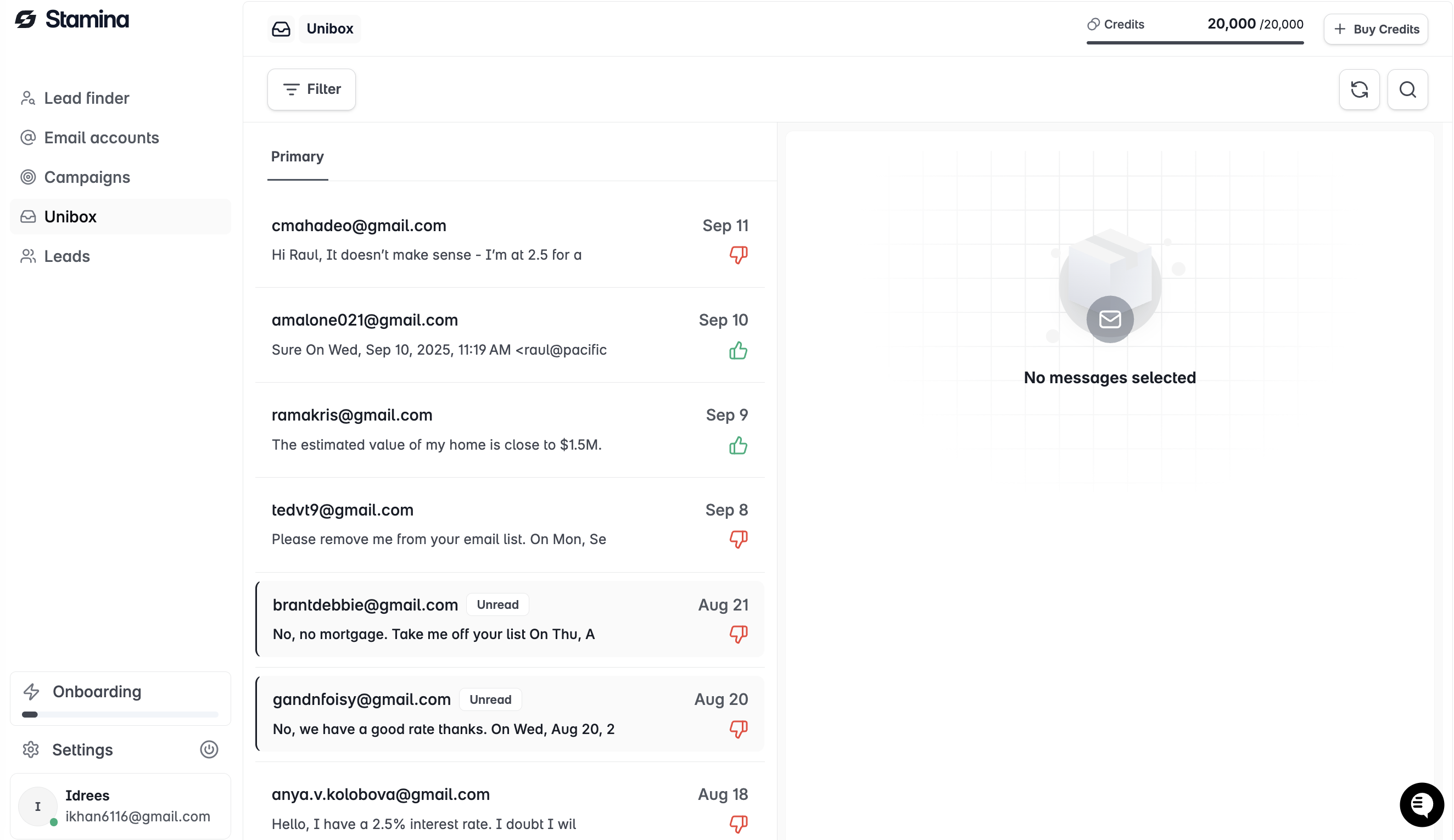
Step 10 — Manage replies in Unibox
All replies land in Unibox. Reply directly, update lead status, add labels, and set follow-up reminders — all from one place.
Need help at any step? Your GTM strategist is available via in-app chat or your dedicated Slack channel.