Managing Multiple Email Schedules
Last updated: April 24, 2026
When running multiple campaigns with different audiences, time zones, or sending strategies, managing schedules effectively prevents overlap, protects your sending accounts from overuse, and ensures emails land at the right time for each audience.
Setting a campaign sending schedule
Open your campaign → Options
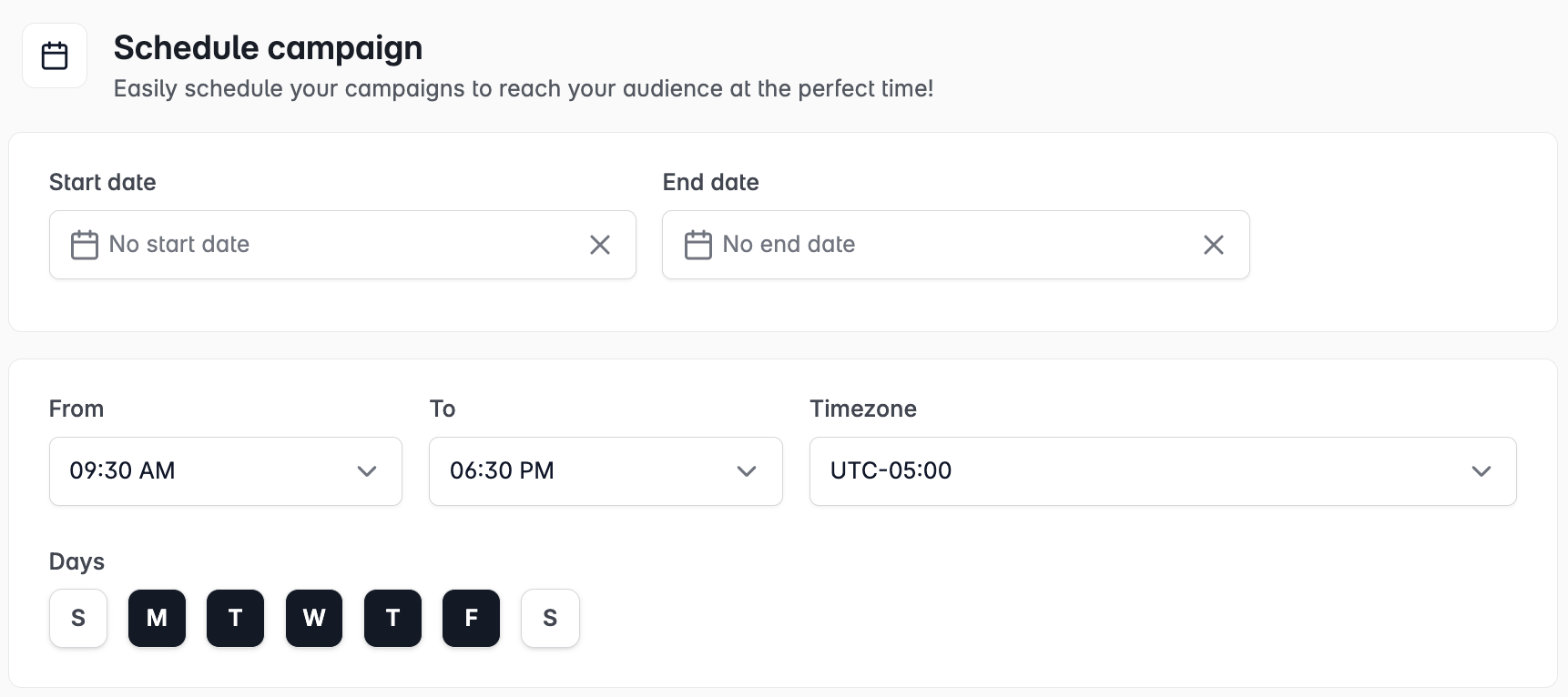
Under Sending Schedule, select the days of the week to send
Set the sending window — the hours during which emails will go out
Emails queued outside this window hold and send at the next available time
Matching schedule to audience time zone
Cold emails perform best when they arrive during the recipient's working hours — typically 7am–10am in their local time zone.
US audiences — Set sending window to 6am–11am EST to cover EST and PST morning windows
UK/Europe audiences — Set sending window to 7am–11am GMT/CET
Mixed global audiences — Consider running separate campaigns per region with region-appropriate schedules
Avoiding account overuse across campaigns
If the same sending accounts are assigned to multiple active campaigns, their daily limits are shared across all campaigns. To prevent any single account from hitting its limit mid-day:
Use account tags to create separate pools of accounts for different campaigns
Set per-campaign daily limits in Options to cap how many emails each campaign can send regardless of account limit
Monitor account-level usage in Email Accounts to spot accounts approaching their daily cap
Pausing campaigns without losing progress
If you need to temporarily stop a campaign — to update copy, wait for new leads to enrich, or manage account capacity — pause it from the Campaigns page. Pausing stops all sends immediately and resumes from where it left off when unpaused. No leads are lost and no steps reset.