How to Use the Opportunities Feature
Last updated: April 24, 2026
Stamina's AI automatically categorizes replies as they come in — assigning statuses like Interested, Not Interested, or Meeting Booked based on the content of each response. This turns Unibox into a live pipeline view, not just an inbox.
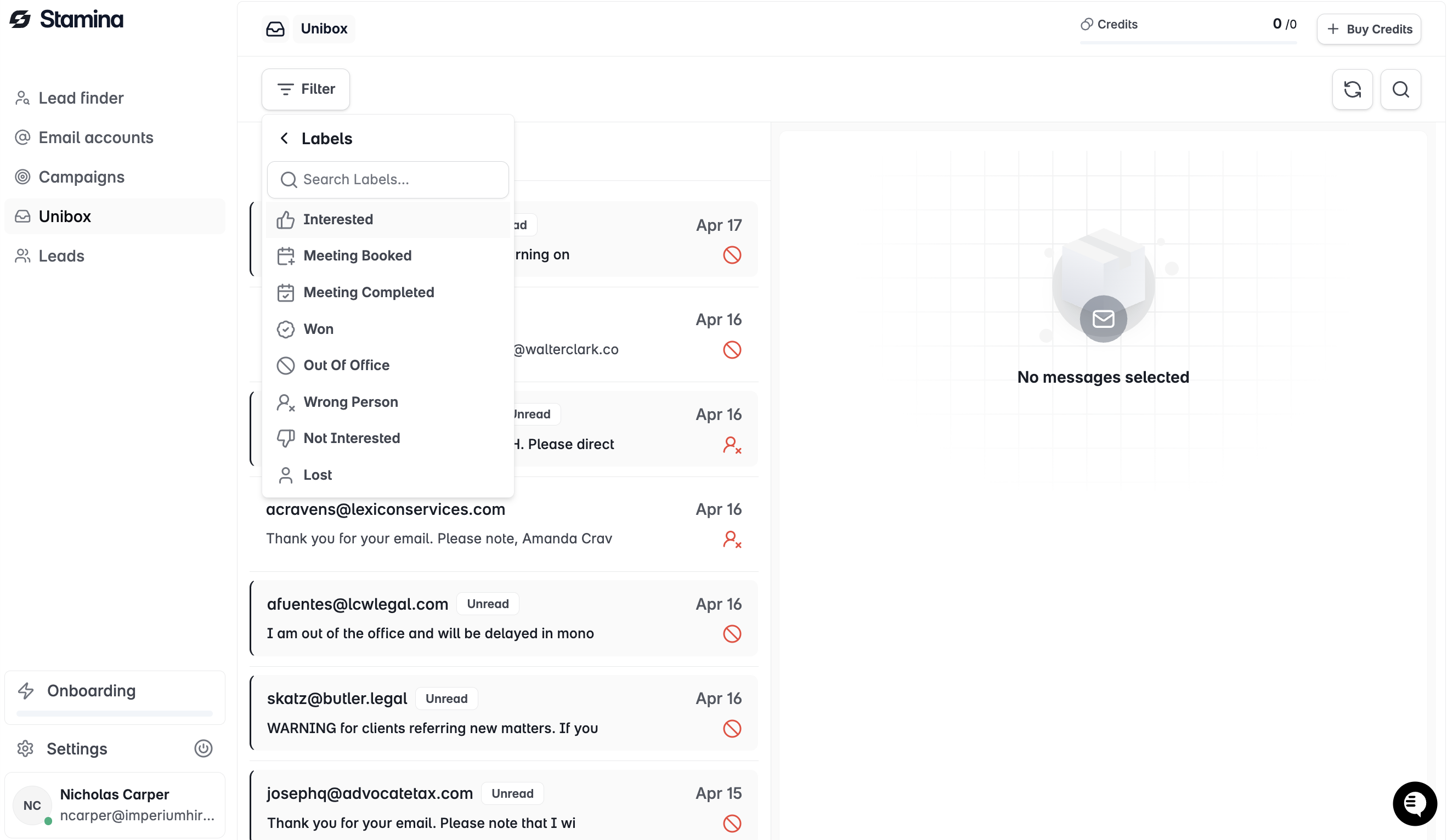
Using status filters to surface opportunities
The most effective way to use Unibox is to filter by status and work through one segment at a time:
Open Unibox and click Interested in the status filter on the left sidebar
You now see only leads who have replied positively — your warm pipeline
Work through each conversation, reply, and update status to Meeting Booked once confirmed
Filter to Meeting Booked to see your confirmed pipeline
Building a simple pipeline workflow
Interested → Reply within the hour, push toward a meeting
Meeting Booked → Hand off to your closing team or CRM
Not Interested → Add to DNC if they explicitly opted out, otherwise leave them — intent can change
Out of Office → Set a reminder to follow up when they're back
Exporting pipeline data
To bring your pipeline into a CRM or share with your team, export your leads from the Leads tab filtered by status. The CSV includes lead details, company, status, and campaign — ready to import into HubSpot, Salesforce, or any other tool.
Check your Interested filter first thing every morning and last thing every afternoon. Reply rate drops significantly after 24 hours — the pipeline you build is only as good as how fast you work it.