Team management and permissions
Last updated: May 4, 2026
Invite teammates to your Stamina workspace and assign roles to control what they can access and do. Manage your team from Settings → Team Management.
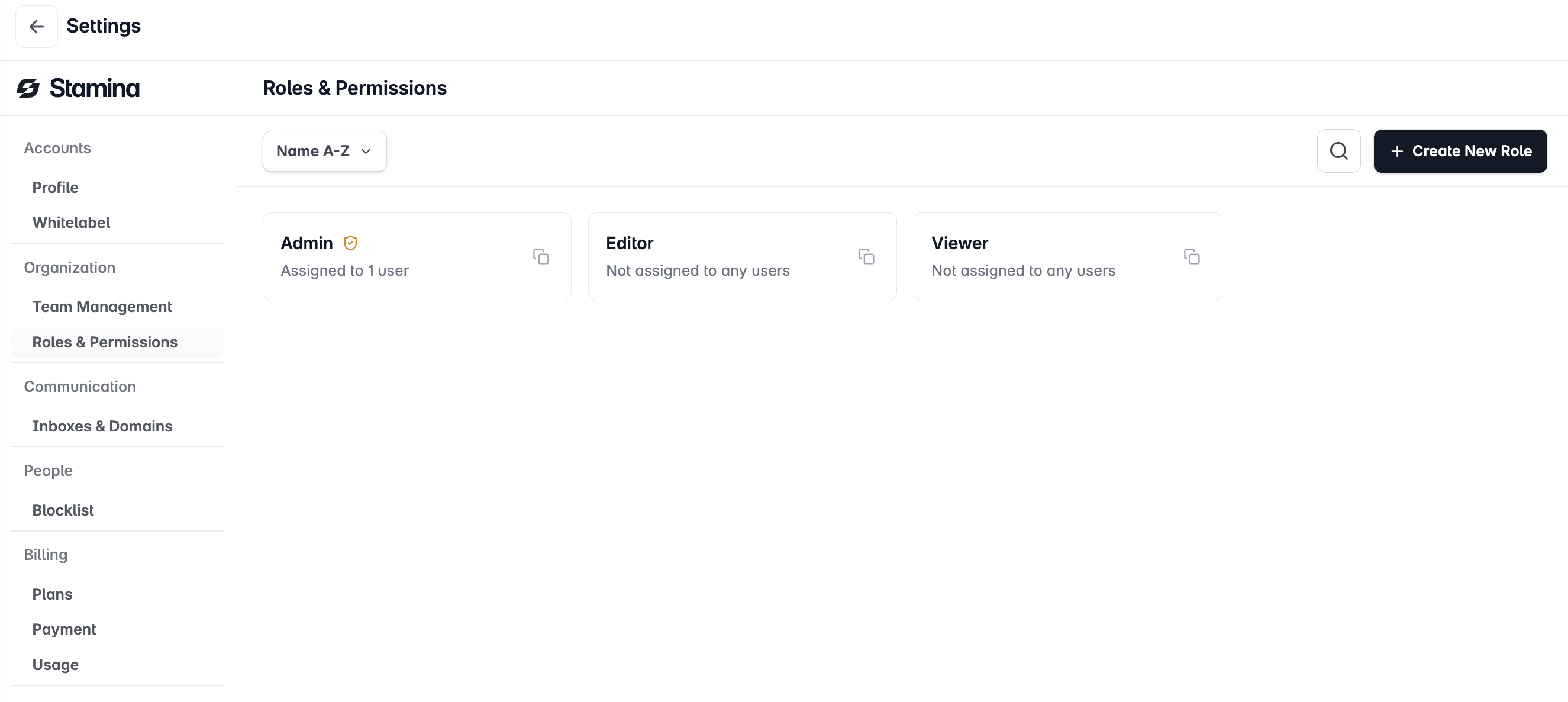
Inviting a team member
Go to Settings → Team Management.
Click Invite Member.
Enter their name and email address.
Select a role from the dropdown (see roles below).
Click Send invite.
The invitee receives an email with a link to join your workspace. They'll need to create a Stamina account using that link.
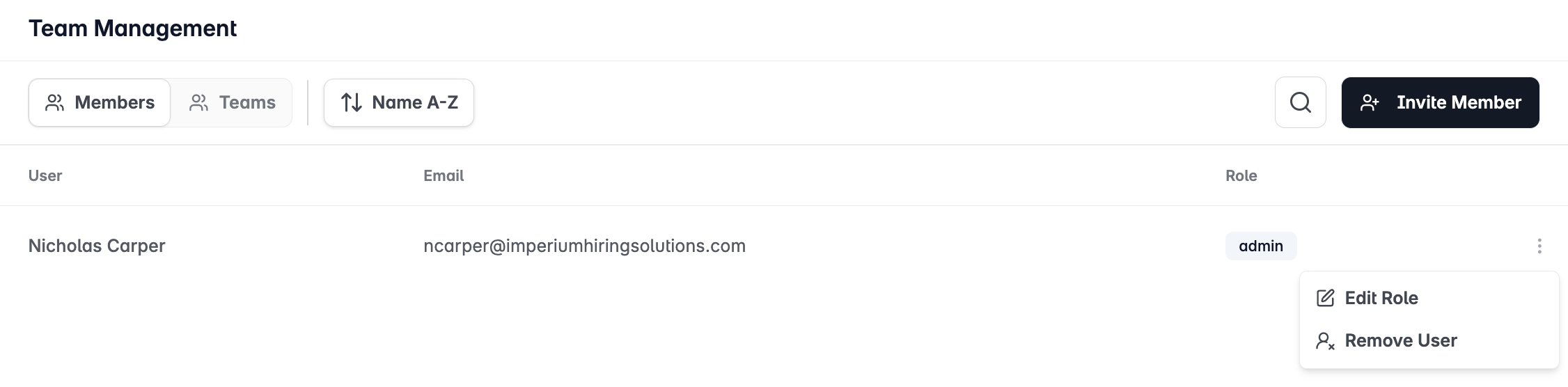
Roles and access levels
Admin
Full access to all features, settings, billing, and team management. Can invite, edit, and remove other members. Assign this role sparingly.
Member
Access to Campaigns, Unibox, Lead Management, and Email Accounts. Cannot access Billing or Team Management settings.
Custom roles
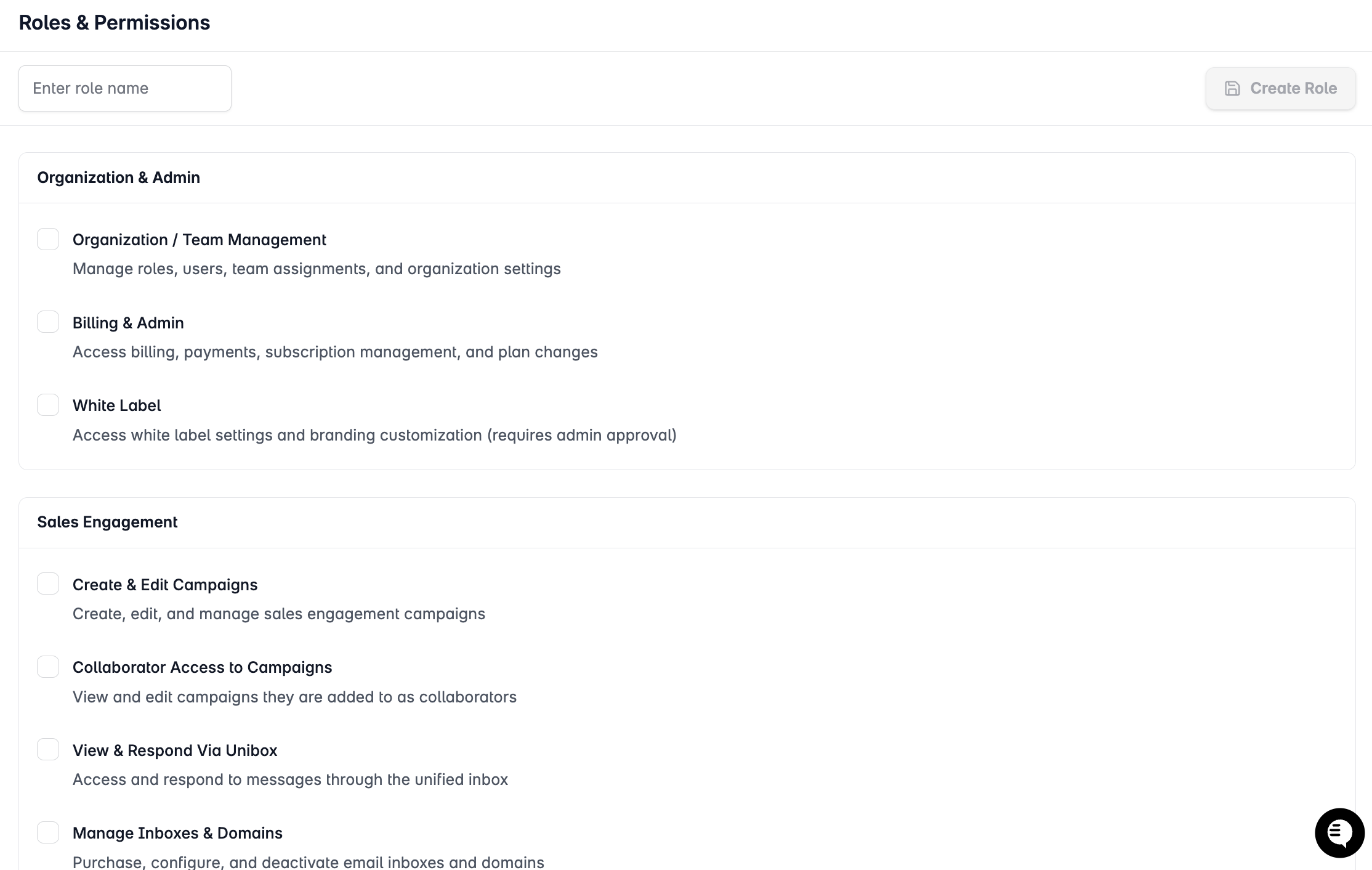
Create roles with specific permission sets tailored to your team structure.
Go to Settings → Roles & Permissions.
Click New role.
Name the role and select the individual permissions to include.
Click Save.
Removing a team member
Go to Settings → Team Management.
Find the member and click the options menu (⋯) next to their name.
Select Remove member and confirm.