Set Up Done-for-you Email Account
Last updated: July 12, 2026
If you don't already have dedicated inboxes for outbound email, Stamina can provision them for you.
The Done-for-you setup allows you to purchase outreach domains, create sender identities, and provision mailboxes directly from Stamina. Once the setup is complete, your inboxes are automatically added to Deliverability, where you can monitor their status and prepare them for campaigns.
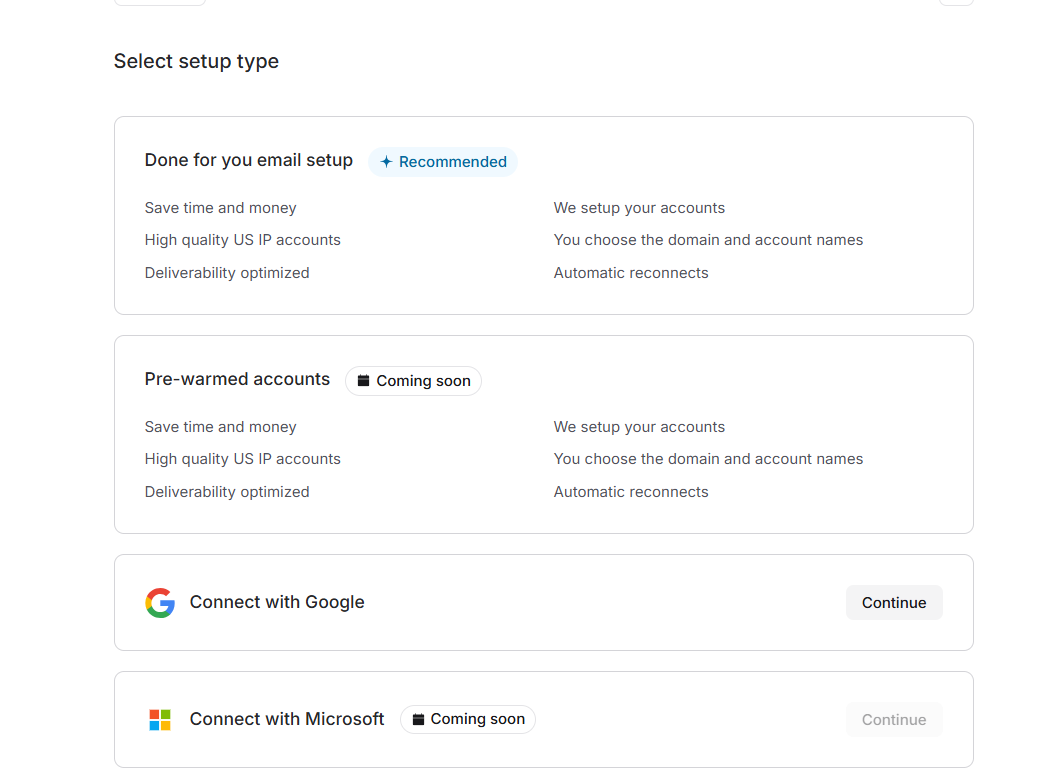
Start the setup
Open Deliverability.
Click Connect Inboxes
Select Done for you email setup.
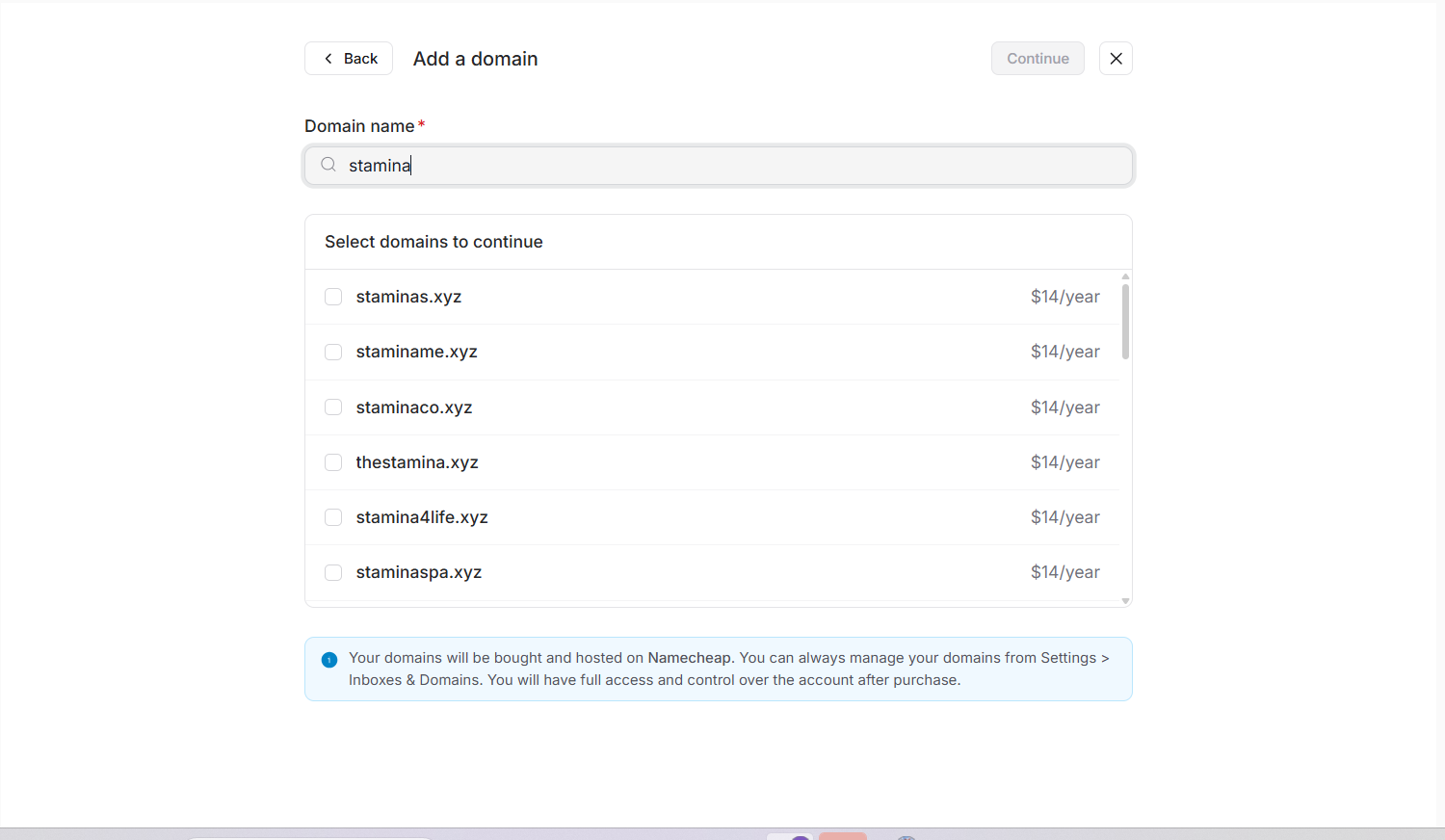
Purchase your outreach domains
Search for a domain name that you'd like to use for outbound email.
Stamina displays available domains that can be purchased directly through the platform. You can select one or more domains depending on how many inboxes you want to create.
Domains purchased through this workflow are hosted with Namecheap and can later be managed from Settings → Inboxes & Domains.
After selecting your domains, click Continue.
Configure your forwarding domain
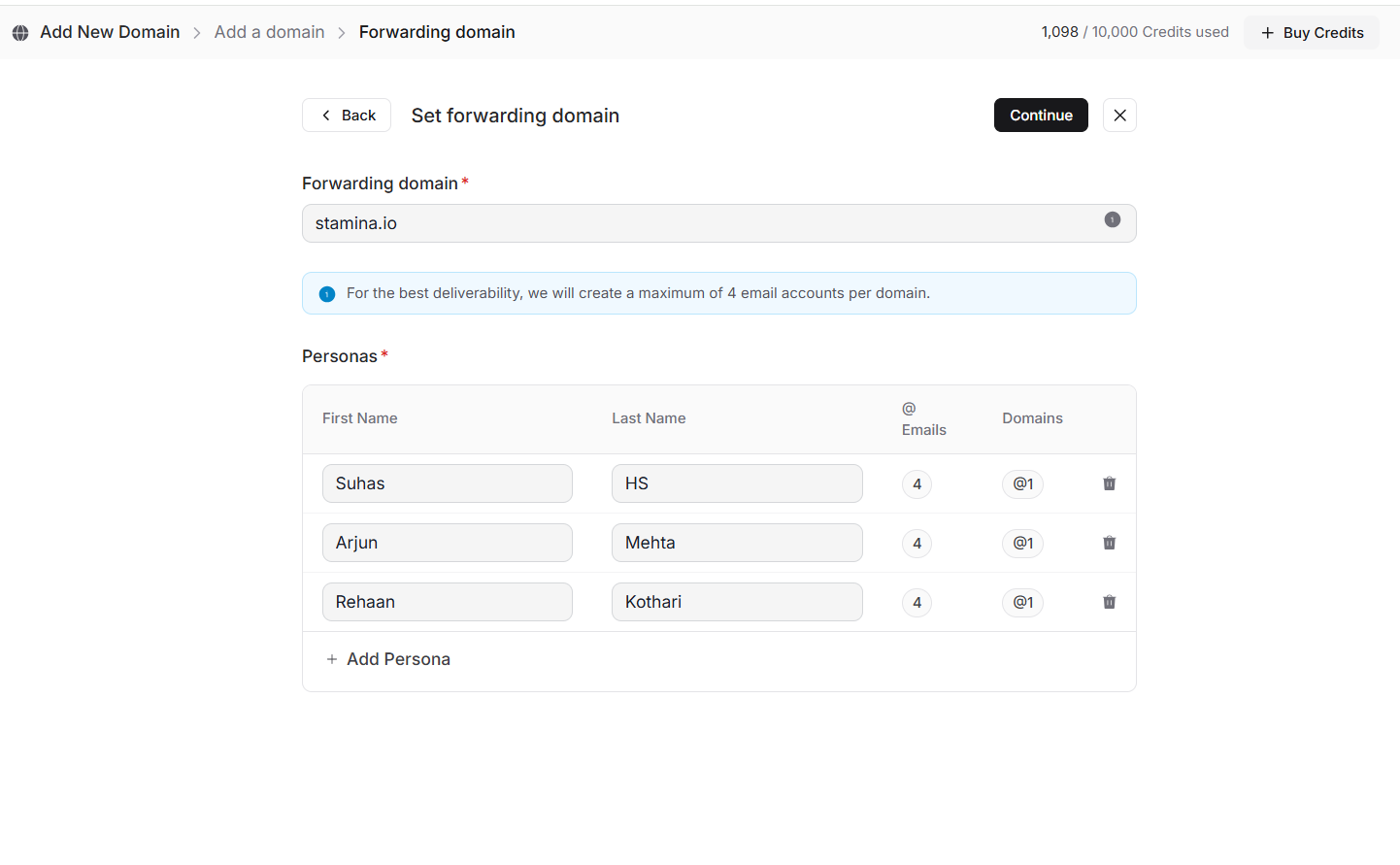
Next, enter the forwarding domain that will be used with your outreach infrastructure.
If you're unsure which forwarding domain to use, check with your GTM strategist before completing this step.
Create sender personas
The next step is creating the sender identities for your outreach inboxes.
For each persona, enter:
First name
Last name
Stamina combines each persona with your selected domains to automatically generate the required inboxes.
For example, purchasing two domains and creating three personas results in six inboxes being created.
Review your order
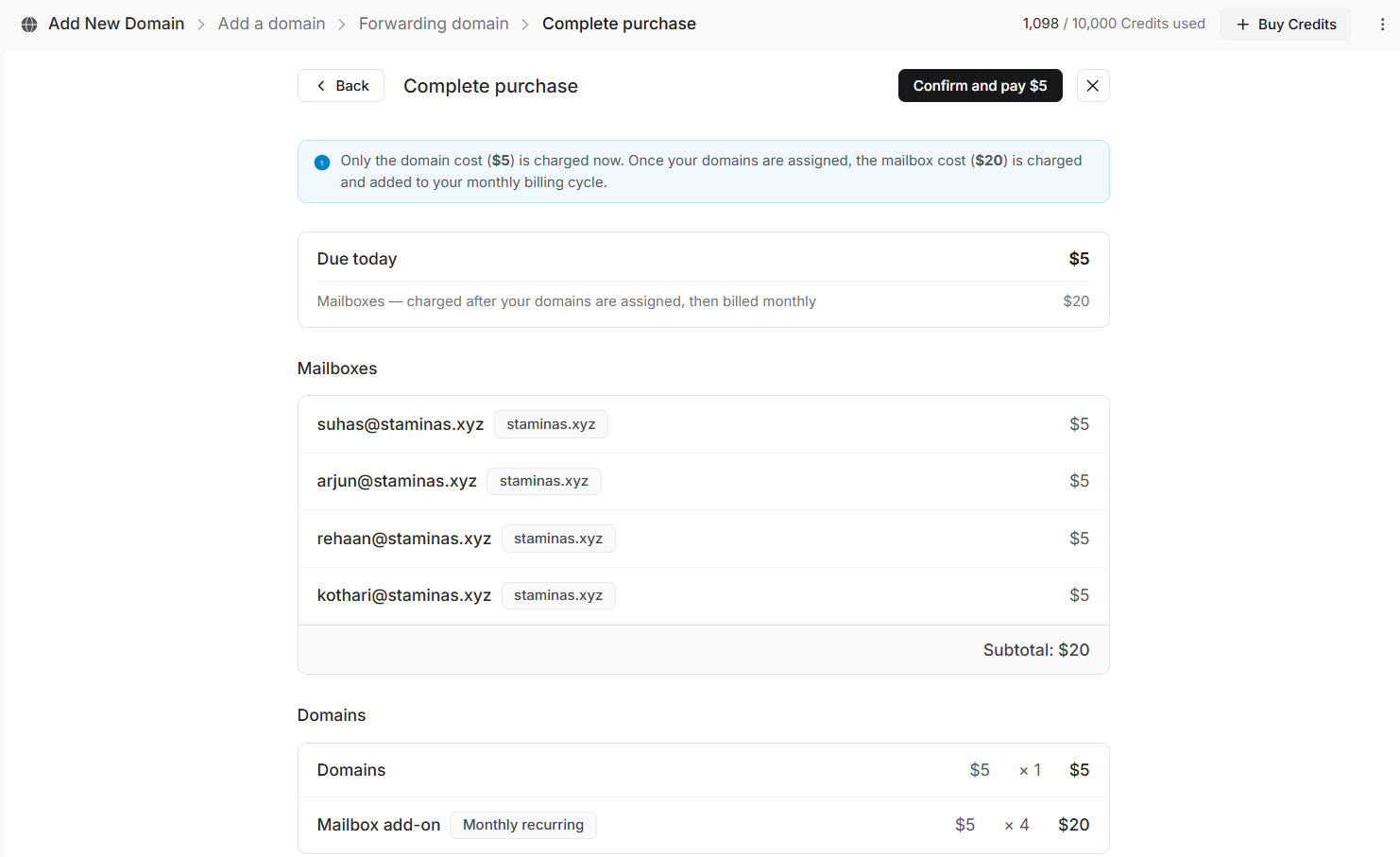
Before completing the purchase, review the infrastructure that will be created.
The order summary includes:
Selected domains
Number of mailboxes
Annual domain cost
Monthly mailbox cost
Take a moment to confirm everything before continuing.
Complete your purchase
Click Purchase to submit your order.
Stamina will begin provisioning your domains and mailboxes. Once provisioning has finished, your new inboxes automatically appear in the Deliverability page.
From there, you can configure sender information, monitor warmup progress, and assign inboxes to campaigns.
Please allow 24 to 72 hours for your emails to be set up as DNS propagation can take some time.