Deliverability Overview
Last updated: July 12, 2026
Deliverability is where see email account health and data.
Every email campaign in Stamina sends messages through one or more connected inboxes. This gives you a central place to add new accounts, monitor their health, configure sender details, and track warmup activity before using them in outreach.
If this is your first time setting up Stamina, this is one of the first sections you should visit after completing your workspace setup.
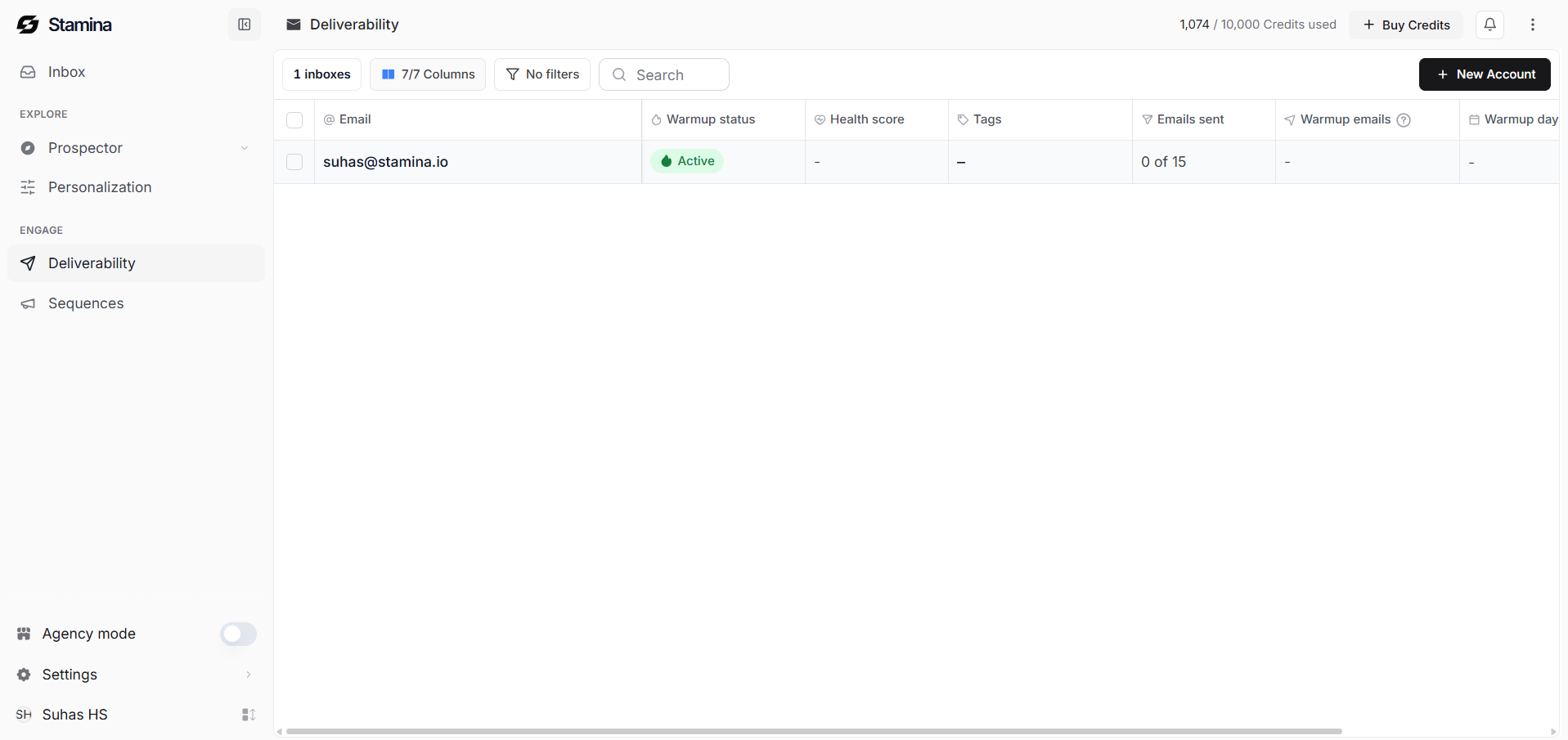
What you can do in Deliverability
The Deliverability page is designed to help you manage every inbox used for outbound email.
From here, you can:
Connect new Google Workspace or Gmail accounts
View all connected inboxes
Configure sender information
Add or update email signatures
Monitor email warmup
Check inbox health and DNS status
See which campaigns are using each inbox
As your workspace grows, this page becomes the central location for managing every sending account.
Understanding how email accounts work in Stamina
Every connected inbox represents a real email account that Stamina can use for sending outbound emails.
Instead of sending all outreach from a single mailbox, most teams distribute campaigns across multiple inboxes. This helps maintain a healthy sending reputation and reduces the likelihood of emails being filtered as spam.
Before an inbox is used for campaigns, it should be connected successfully and allowed to build its reputation through the warmup process.
Add a New Inbox
Administrators can add new inboxes directly from the Deliverability page.
To add a new inbox:
Click New Account in the upper-right corner of the Deliverability page.
Select the domain you want to use or purchase a new inbox if needed.
Follow the guided 📄 Set Up Done-for-you Email Accountsetup process.
Once setup is complete, the inbox is automatically added to your workspace and warmup begins.
After an inbox is connected, administrators can assign it to a workspace user. Collaborators only see and manage the inboxes that have been assigned to them.
Note: Each connected domain supports up to four inboxes, allowing administrators to distribute sending activity across multiple mailboxes while maintaining healthy deliverability.
For a step-by-step walkthrough of the setup process, see 📄 Set Up Done-for-you Email Account
Managing connected inboxes
Selecting a connected inbox opens a side panel where you can manage its configuration.
Each inbox includes three sections that control different parts of the account.
Settings
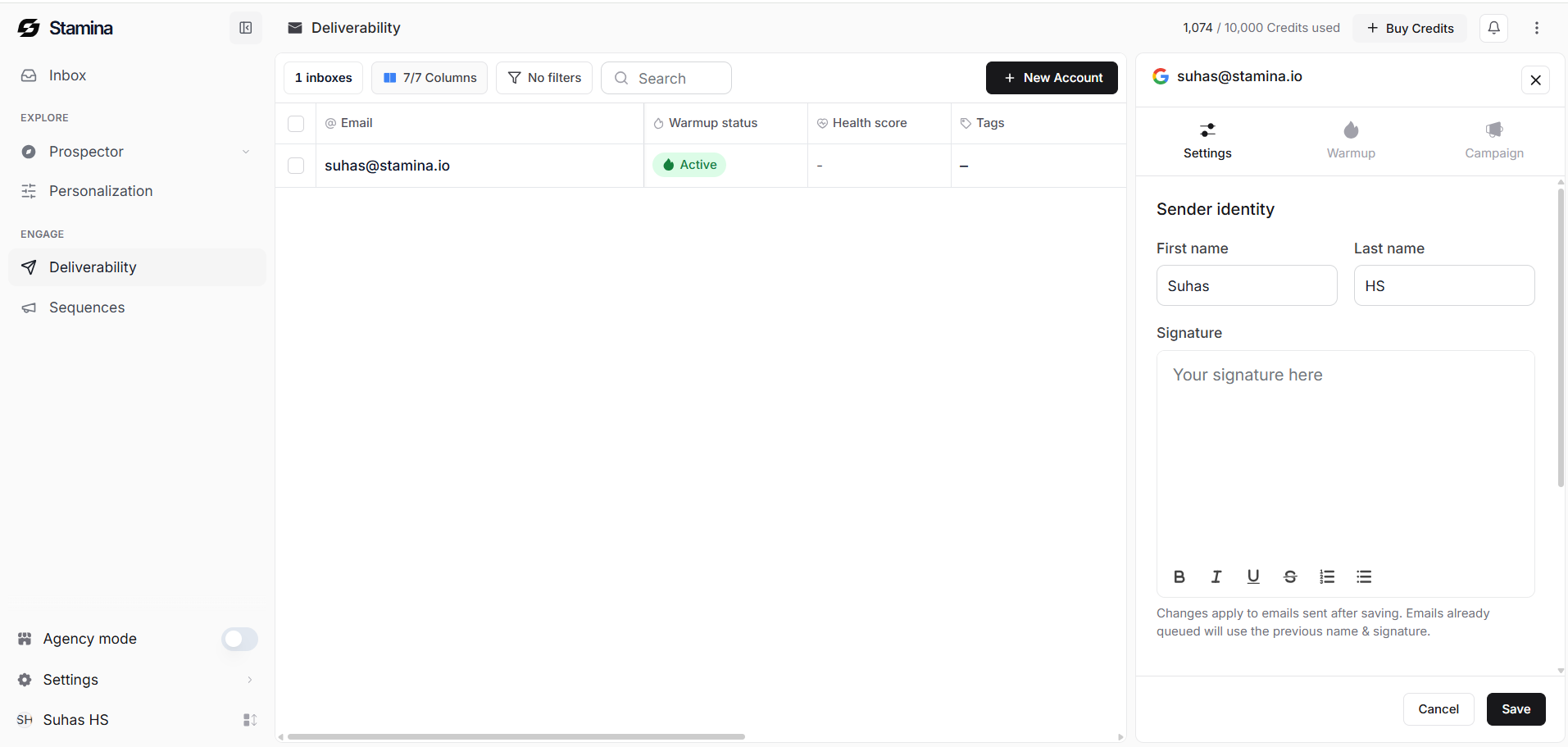
The Settings tab contains the sender identity used for outgoing emails.
Here you can:
Update the sender's first name
Update the sender's last name
Create or edit the email signature
Save changes for future emails
Changes apply only to emails sent after they are saved. Emails that are already queued continue using the previous sender information.
Warmup
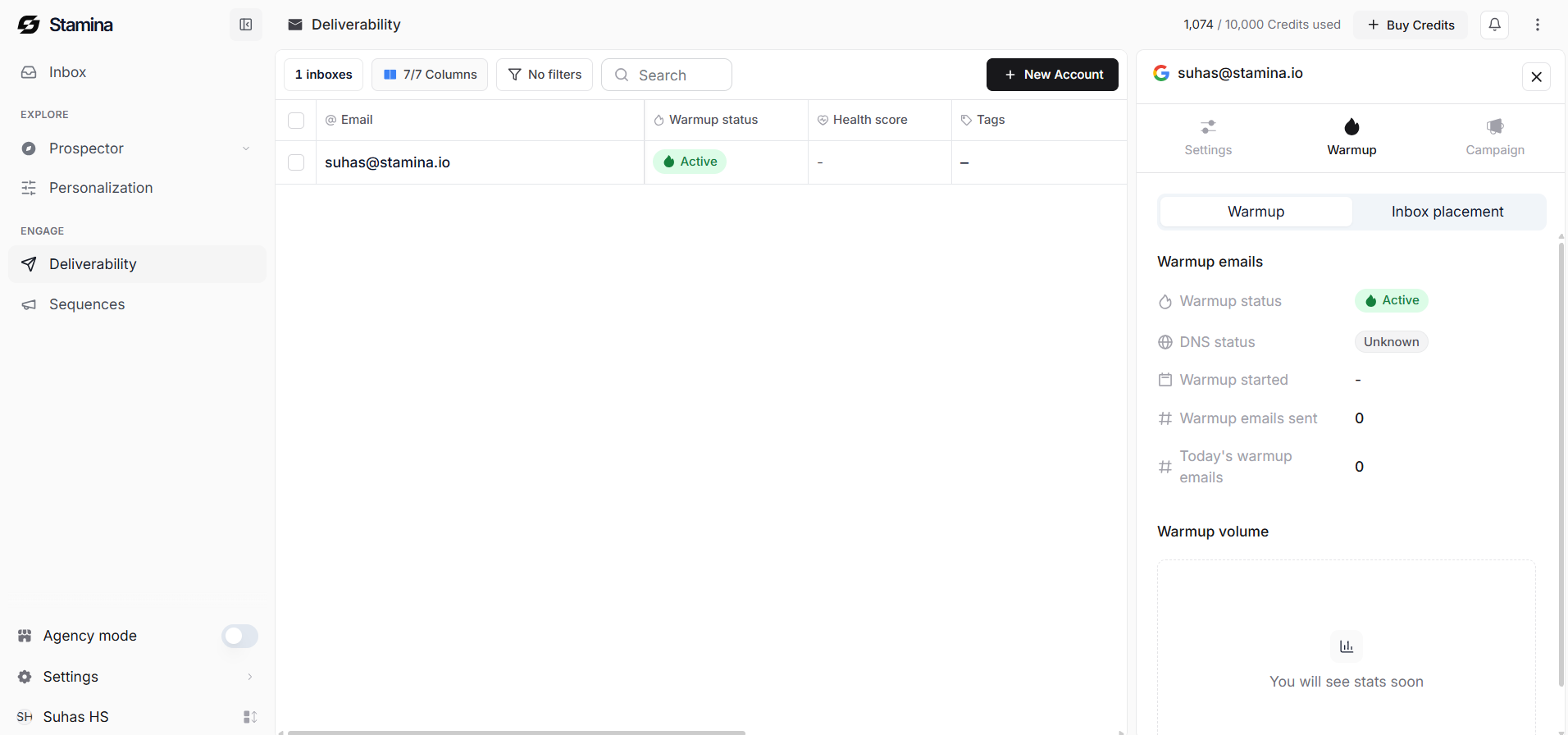
The Warmup tab provides information about your inbox warmup process.
This section includes details such as:
Warmup status
DNS status
Warmup start date
Number of warmup emails sent
Today's warmup activity
Inbox placement metrics
Warmup helps build your inbox reputation before it is used for larger outreach campaigns.
Learn more in Inbox Warmup & Deliverability.
Campaign
The Campaign tab shows whether the inbox is currently assigned to any active campaigns.
If the inbox is not currently being used, the panel indicates that it is not assigned to any active campaign.
This view helps you quickly identify which inboxes are available and which are already being used for outreach.
Monitoring inbox health
The Deliverability table provides a high level view of every connected inbox.
Depending on your workspace configuration, you may see information such as:
Email address
Warmup status
Health score
Tags
Emails sent
Warmup emails
Warmup days
These columns make it easy to monitor the status of multiple inboxes without opening each one individually.
Best practices
To maintain healthy sender accounts:
Connect inboxes before launching campaigns.
Allow 14 days of warmup to establish sender reputation before increasing sending volume.
Keep sender names and signatures up to date.
Review inbox health regularly.
Distribute sending volume across multiple inboxes as your outreach grows.
Next steps
Now that you understand the Deliverability workspace, the next step is connecting your first email account.
Continue to 📄 Set Up Email Accountsfor a complete walkthrough of connecting a Gmail or Google Workspace inbox to Stamina.