Set a reply-to address
Last updated: May 4, 2026
A reply-to address redirects all lead responses to a different inbox than the one sending the email. The lead sees the sending address in their inbox, but when they hit Reply, their message goes to the reply-to address instead.
Example: Emails are sent from alex@outreach-domain.com. The reply-to is set to alex@yourbrand.com. Lead replies land in alex@yourbrand.com.
When to use a reply-to address
You want replies to arrive in your primary brand inbox rather than the outreach inbox
You want replies to appear in Unibox from a specific connected inbox — in that case, connect the reply-to address to Stamina as well
You're managing multiple clients and want replies routed to client-specific inboxes
How to set a reply-to address
Go to Email Accounts.
Click the account you want to configure.
In the right-side panel, click Account Settings.
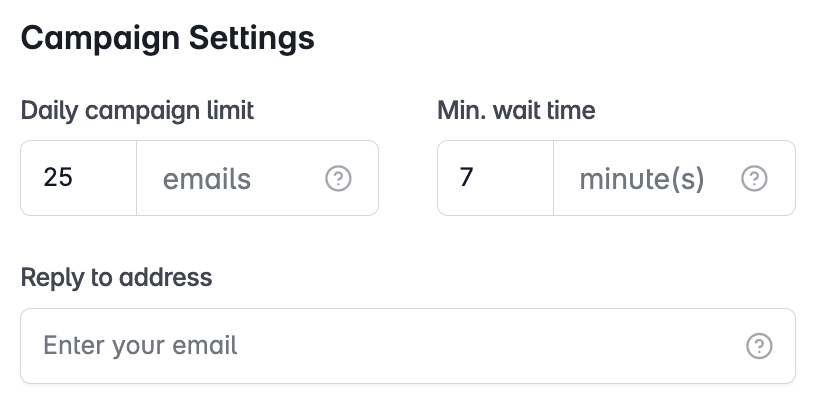
Enter the reply-to email address in the Reply-To field.
Click Save.
If you want replies to appear in Unibox, the reply-to inbox must also be connected to Stamina as an email account. If it's not connected, replies will go to that inbox externally but won't appear in Unibox.
This setting is optional and per-account. Leave the field blank to receive replies directly in the sending inbox.