Account tags
Last updated: May 4, 2026
Tags let you group email accounts and add them to campaigns in bulk. Instead of selecting accounts one by one, you assign a tag to a group of accounts and then assign that tag to a campaign.
Creating a tag
Go to Email Accounts.
Click an account to open its details panel on the right.
Click Account Settings.
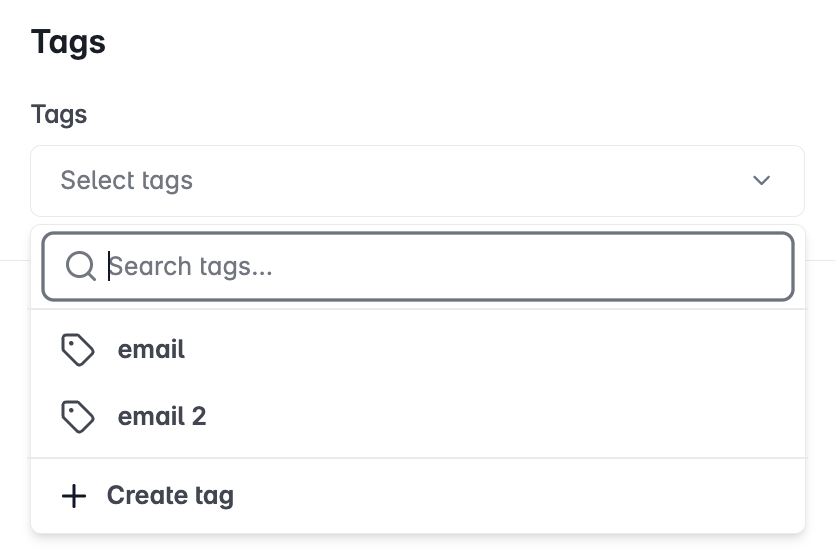
In the Tags field, type a new tag name (e.g. Client A, US Outreach, Warmup Pool).
Press Enter or click Add.
Click Save.
Assigning tagged accounts to a campaign
Open a campaign and go to the Options tab.
Under Sending Accounts, select one or more tags from the dropdown.
All accounts with that tag are automatically added to the campaign's sending pool.
If you add new accounts to an existing tag while a campaign is running, those accounts are automatically included in the campaign's sending rotation.
Adding tags to multiple accounts at once
Go to Email Accounts.
Select multiple accounts using the checkboxes.
Click Bulk Edit Settings.
Update the Tags field and click Save.