Bulk account settings
Last updated: April 24, 2026
Bulk Edit lets you update settings across multiple email accounts simultaneously — useful for applying consistent sending limits, tags, signatures, or reply-to addresses without editing each account one by one.
How to bulk edit
Go to Email Accounts.
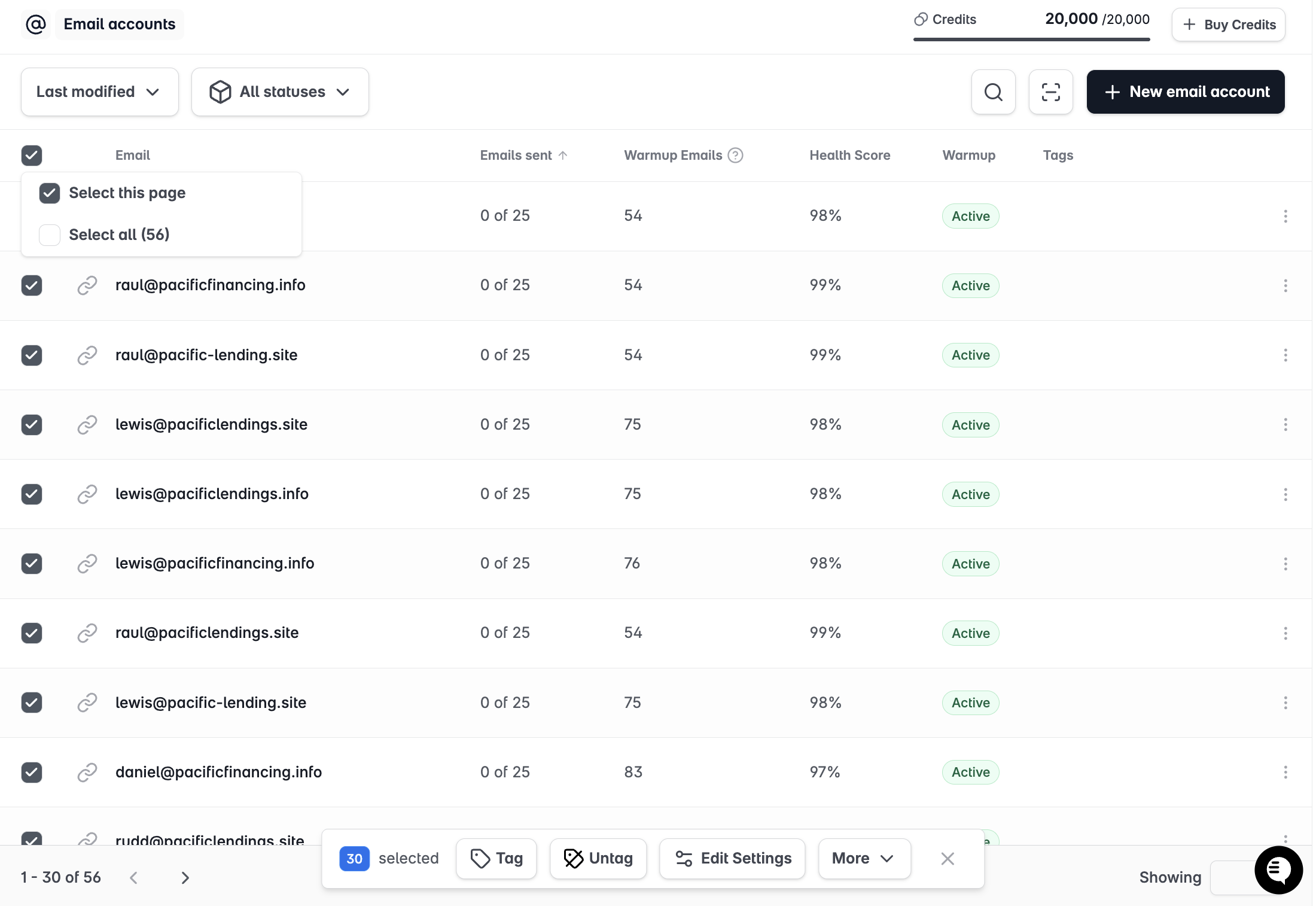
Select the accounts you want to update by clicking their checkboxes. Use the header checkbox to select all accounts on the page.
Click Bulk Edit Settings at the top of the list.
Update the fields you want to change. Only fields you modify will be applied — empty fields are ignored.
Click Save.
Settings you can bulk edit
Daily sending limit — Maximum emails sent per day from each account
Sending window — Time of day during which emails are sent
Tags — Add or remove tags across all selected accounts
Email signature — Apply a consistent signature across accounts
Reply-to address — Set the same reply-to address on multiple accounts
Bulk edits are applied immediately to all selected accounts. If you're updating active campaign accounts, changes take effect on the next sending cycle.