Scheduling & Sequence Settings
Last updated: July 12, 2026
After creating your email sequence, the final step is deciding when your emails should be sent and how Stamina should deliver them. Scheduling controls the days and times your sequence can run, while sequence settings determine the sending behavior for your campaign.
Taking a few minutes to review these options helps ensure your emails are delivered consistently and according to your outreach strategy.
Configure your schedule
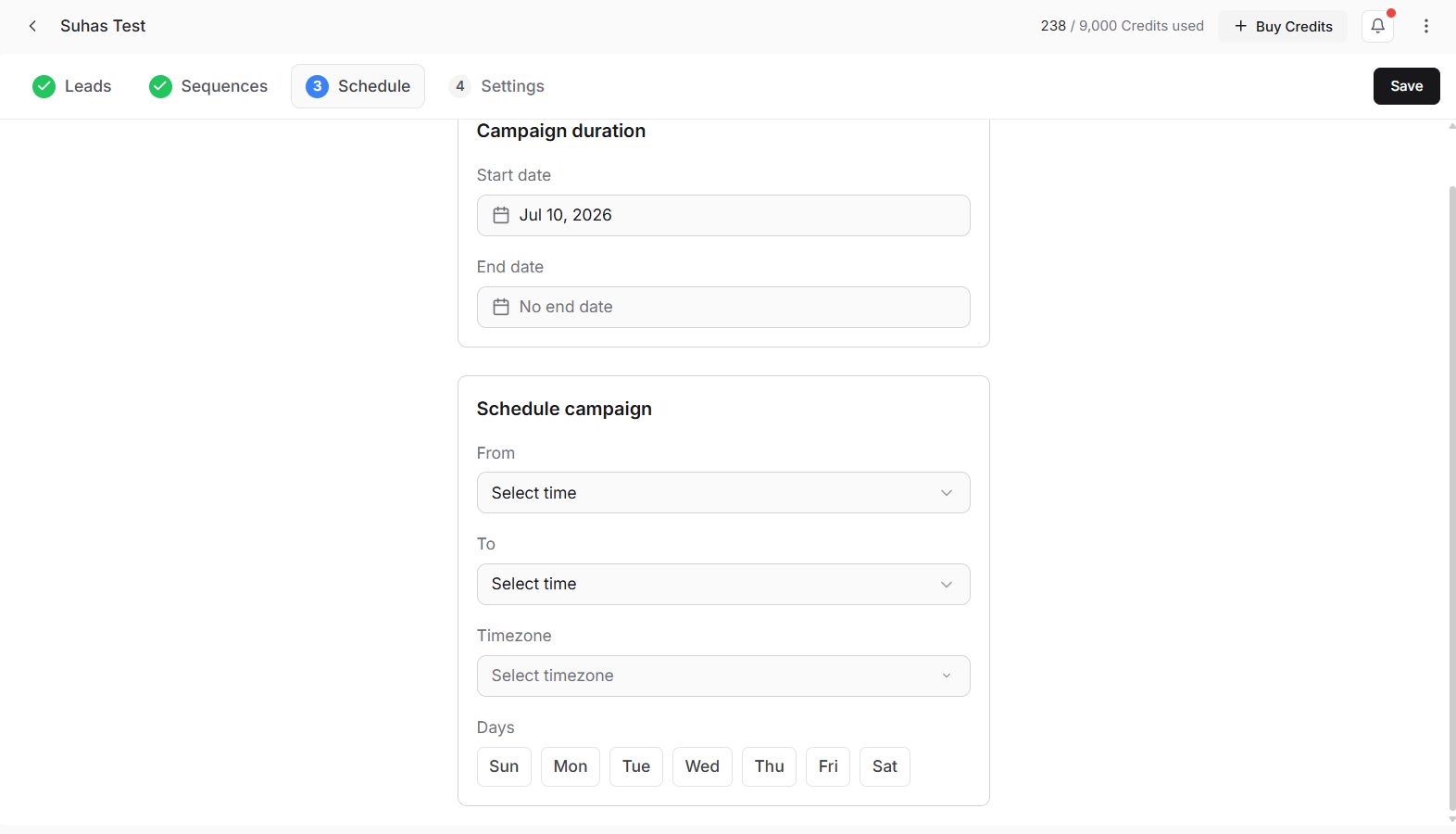
The Schedule step controls the days and times your sequence is allowed to send emails.
Configure the following options:
Start Date – The date your sequence becomes active.
End Date (optional) – Stop sending after a specific date.
Time Zone – Choose the time zone used for scheduling.
Sending Days – Select which days of the week emails can be sent.
Sending Hours – Define the daily time window for sending emails.
Stamina only sends emails during the schedule you've configured.
Configure campaign settings
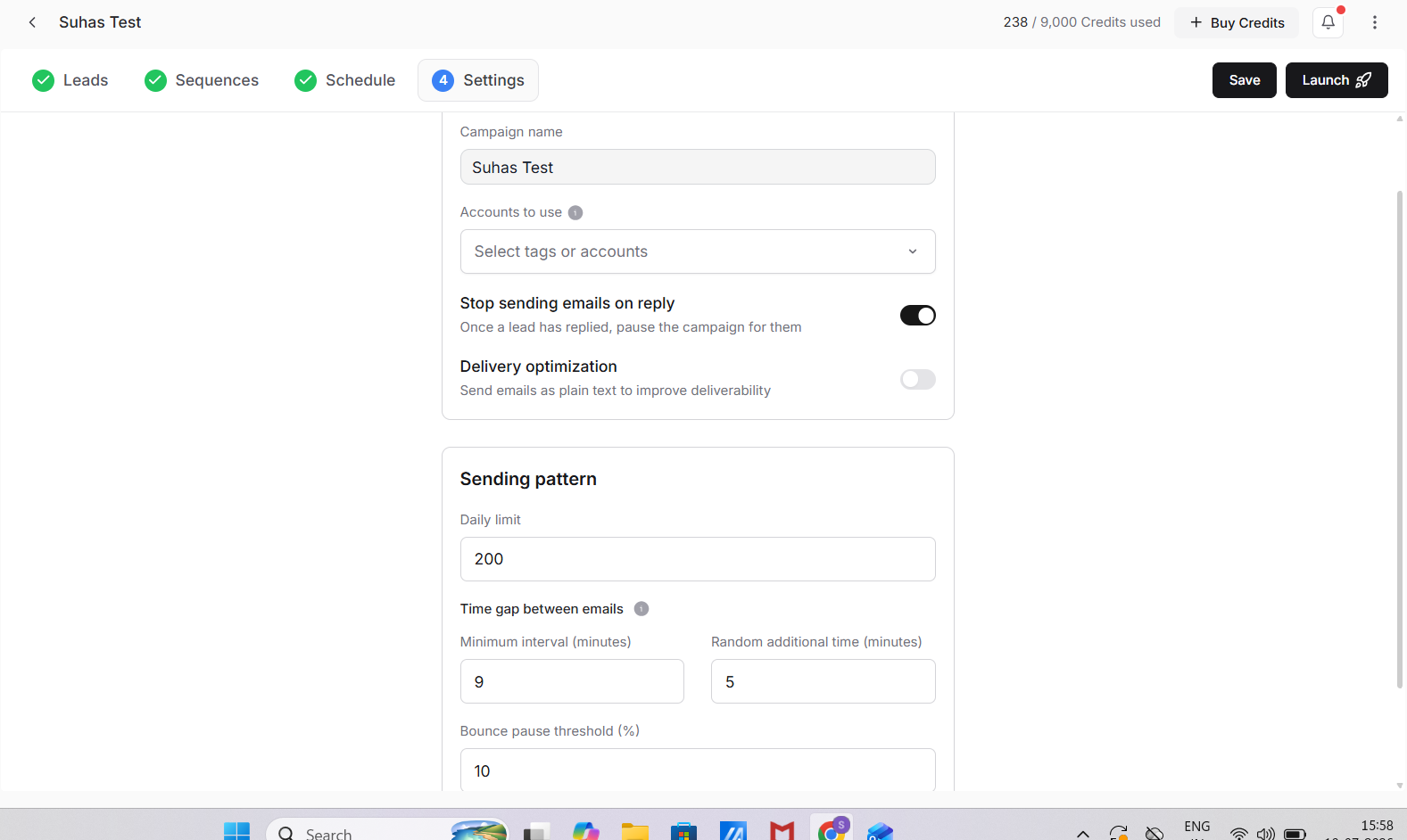
The Campaign Settings section contains the core settings for your sequence.
Campaign Name
Give your campaign a descriptive name that makes it easy to identify later.
Sending Account
Choose which connected inbox will send emails for this sequence.
Stop Sending After a Reply
Enable this option to automatically stop sending follow-up emails once a recipient replies.
Delivery Optimization
Enable Plain Text mode if you want emails to be sent without rich formatting for a more natural appearance.
Configure sending behavior
The Sending Pattern section controls how emails are distributed throughout the day.
Daily Sending Limit
Set the maximum number of campaign emails that can be sent each day.
Choose a limit appropriate for the sending inboxes assigned to the sequence.
Minimum Time Between Emails
Specify the minimum delay between each outgoing email.
This helps distribute emails more naturally rather than sending them all at once.
Random Additional Delay
Optionally add a random delay between emails to create a less predictable sending pattern.
Bounce Pause Threshold
Pause sending automatically if the number of bounced emails reaches the configured threshold.
Prioritize New Leads
Enable this option to send emails to newly added leads before continuing with older recipients.
Insert Unsubscribe Link Header
Automatically include an unsubscribe header in outgoing emails when required.
Review before launching
Before launching your sequence, review:
Schedule
Sending account
Daily sending limits
Reply handling
Sending pattern
Confirm everything matches your campaign strategy before activating the sequence.
Launch your sequence
When you're satisfied with the configuration, click Launch.
Your sequence becomes active and Stamina begins sending emails according to:
Your sequence schedule.
The follow-up delays configured for each email step.
The sending behavior defined in your campaign settings.
You can monitor your campaign and recipient replies from the Inbox after the sequence is launched.
Best practices
Double-check your sending schedule before launching.
Choose a time zone that matches your target audience.
Start with conservative daily sending limits for new inboxes.
Enable Stop Sending After a Reply to avoid sending unnecessary follow-ups.
Review your sending pattern to create a consistent outreach cadence.
Verify the correct sending account is selected before activating the sequence.