Adding Leads to a Sequence
Last updated: July 12, 2026
Before a sequence can send emails, you need to add the recipients you want to contact. Stamina allows you to import leads from an existing Personalization list or upload your own CSV file. Regardless of which method you choose, every import goes through the same review and validation process before leads are added to your sequence.
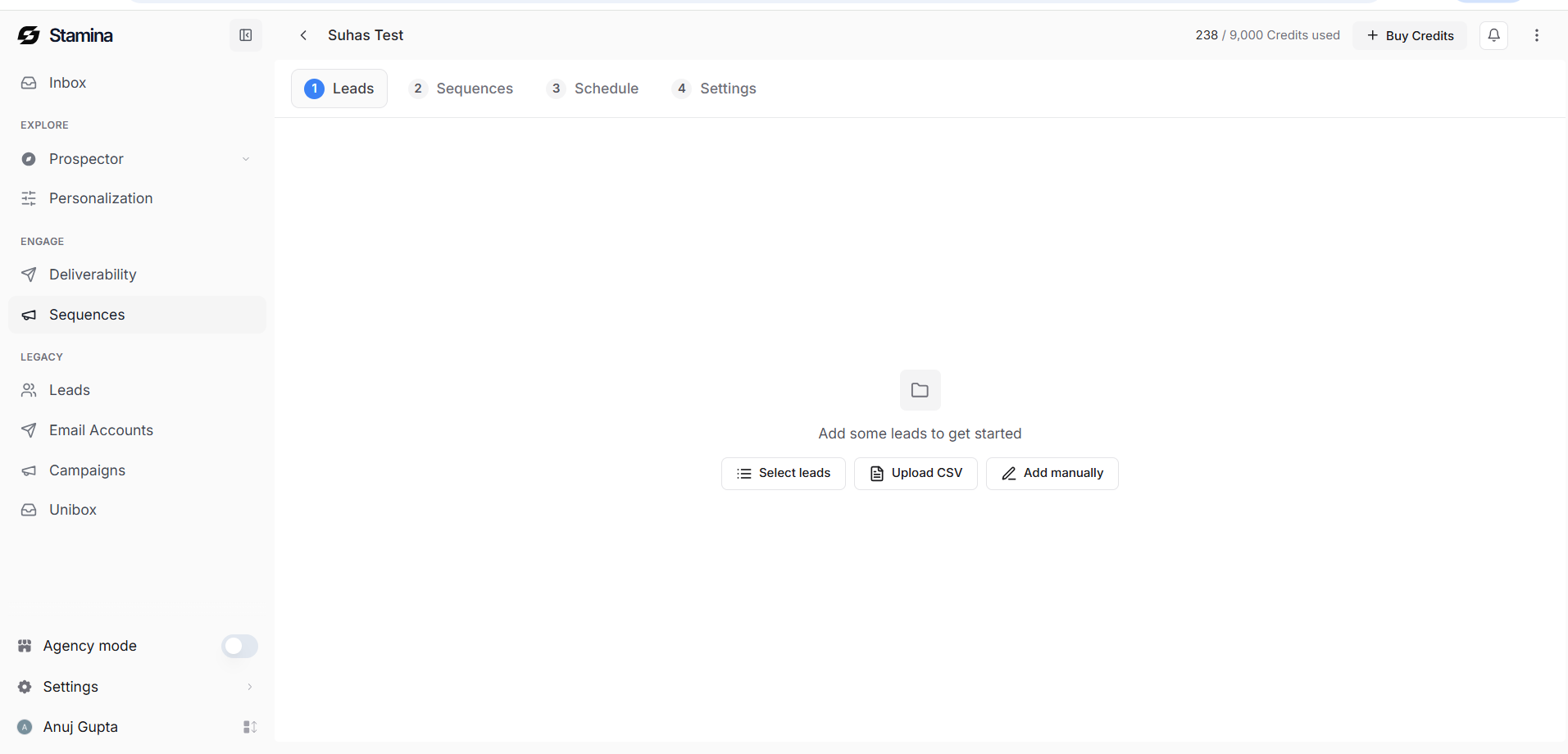
Choose how to import leads
Open the Leads step in your sequence.
You'll have two options:
Select Leads to import an existing list from Personalization.
Upload CSV to import leads from a spreadsheet.
Both options follow the same validation process before the leads are enrolled in the sequence.
Import a Personalization list
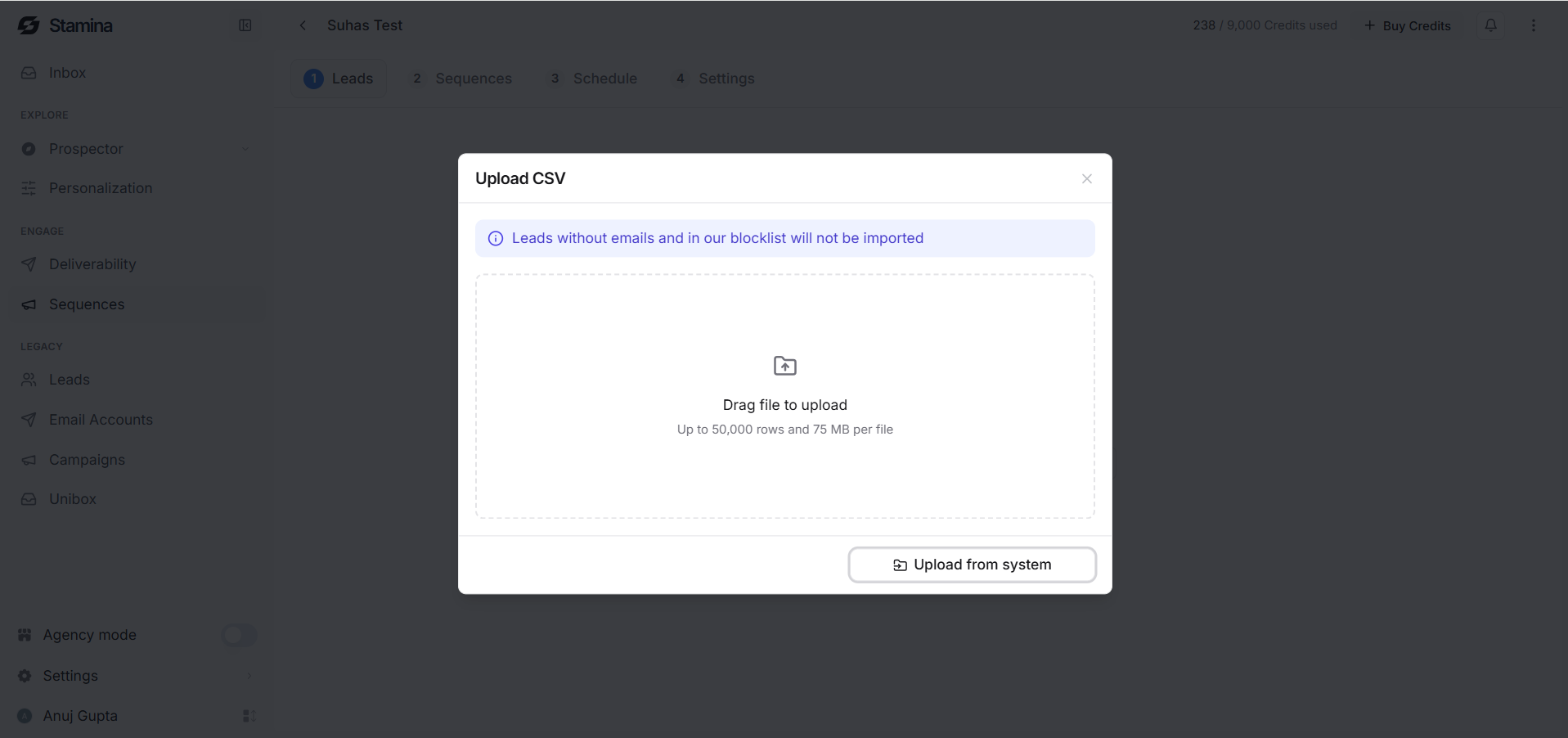
If you've already organized your prospects in Personalization, you can import an existing list directly into your sequence.
Click Select Leads.
Choose the Personalization list you want to use.
Click Select.
Your selected list is then prepared for review before the leads are added to the sequence.
Upload a CSV file
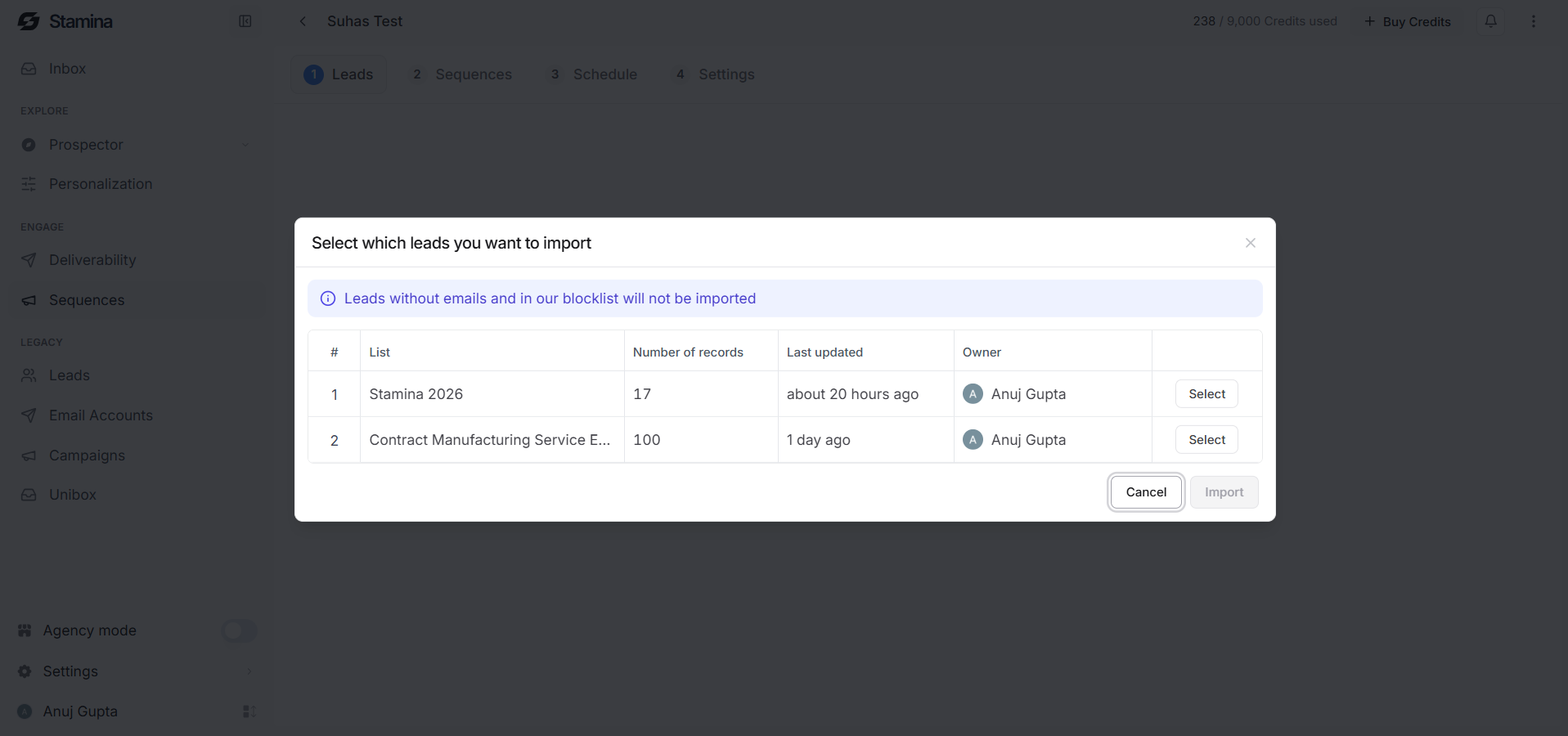
If your leads are stored outside Stamina, you can upload them using a CSV file.
To upload a file:
Click Upload CSV.
Drag and drop your CSV file into the upload area or select it from your computer.
If needed, download the sample template to match Stamina's supported format.
After the file is uploaded, you'll review how each column maps to your lead data.
Review and map your data
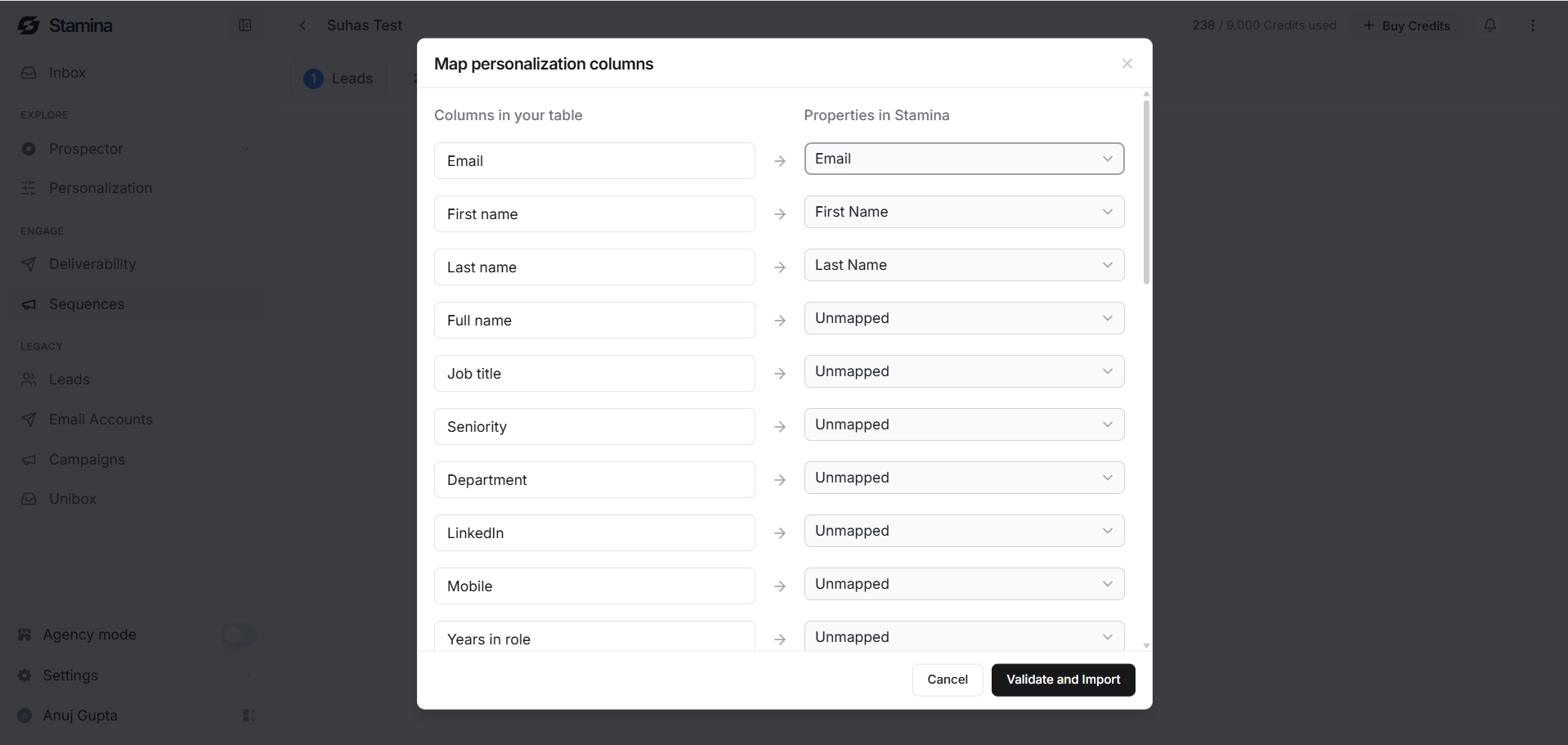
Whether you import a Personalization list or upload a CSV, Stamina displays a mapping table before importing your leads.
Review each imported column and match it to the appropriate Stamina field.
Common fields include:
Email
First Name
Last Name
Company
Job Title
LinkedIn Profile
Department
Phone Number
If a column isn't needed, you can leave it as Unmapped.
Taking a few moments to review the mapping helps ensure your lead data is imported correctly.
Validate and import
Once you've reviewed the mappings, click Validate & Import.
Before adding recipients to the sequence, Stamina validates the imported data.
During validation:
Leads without a valid email address aren't imported.
Leads already included in your DNC (Do Not Contact) list are automatically excluded.
After validation is complete, the imported leads are added to your sequence.
Review your imported leads
After the import finishes, you'll return to the Leads tab where you can review everyone enrolled in the sequence.
The table displays information such as:
Name
Email
Company
Status
Next scheduled send
Review your recipients before continuing to the next step of building your sequence.
Best practices
Review your lead data before importing to reduce mapping errors.
Always confirm the email column is mapped correctly before validating the import.
Remove unnecessary columns from your CSV to keep imports clean and easier to review.
Use Personalization lists when possible to keep your prospect data organized across campaigns.
Review the imported lead list before moving on to build your email sequence.