Create your first Campaign
Last updated: July 12, 2026
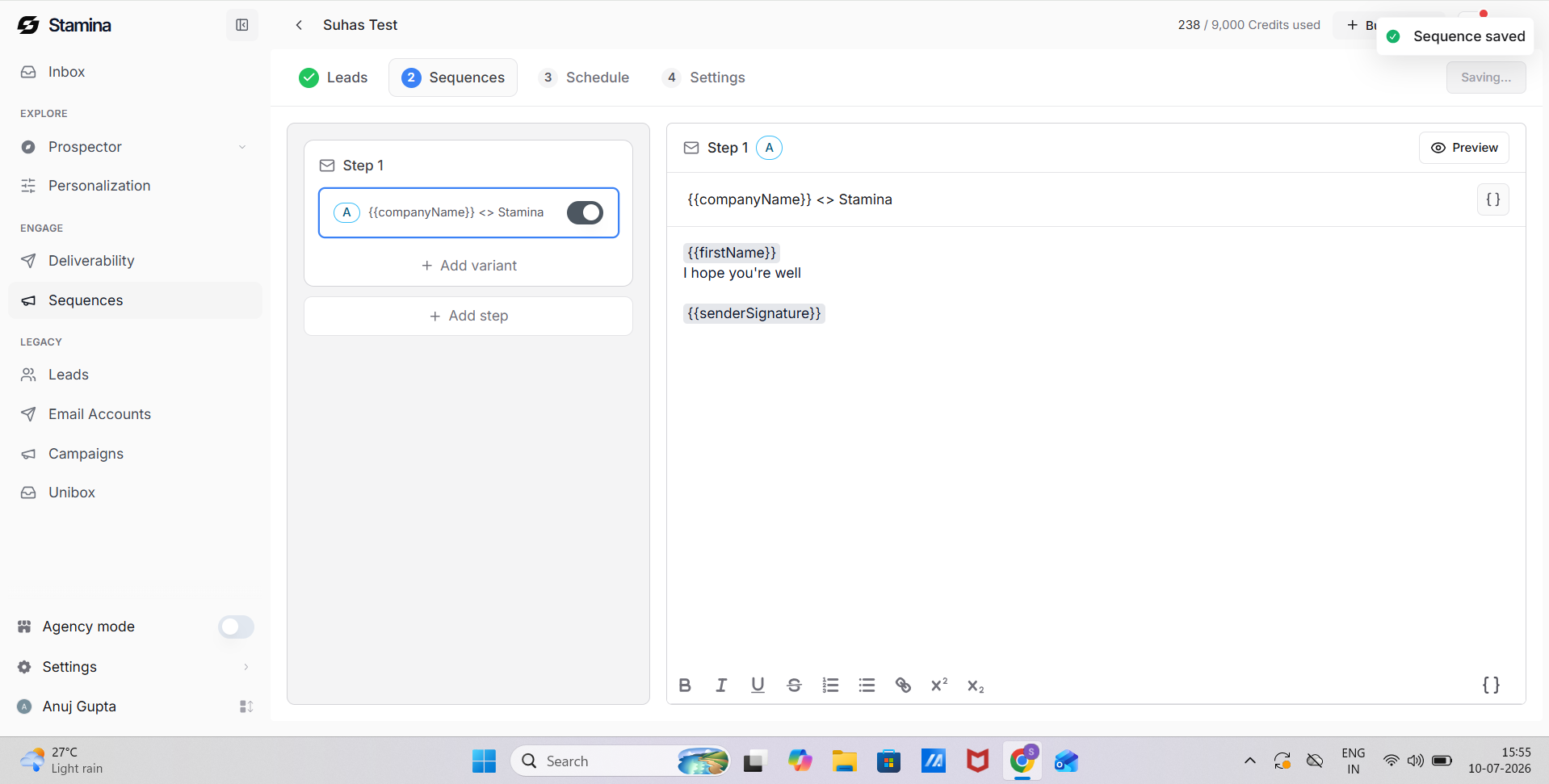
Every sequence begins with Step 1, which is the first email your recipients will receive.
For each email, you can:
Add a subject line.
Write the email body.
Format your content using the rich text editor.
Insert personalization variables.
Preview the email before launching the sequence.
Take time to review your opening email, as it sets the tone for the rest of your outreach.
Personalize your emails
Personalized emails help make your outreach more relevant to each recipient.
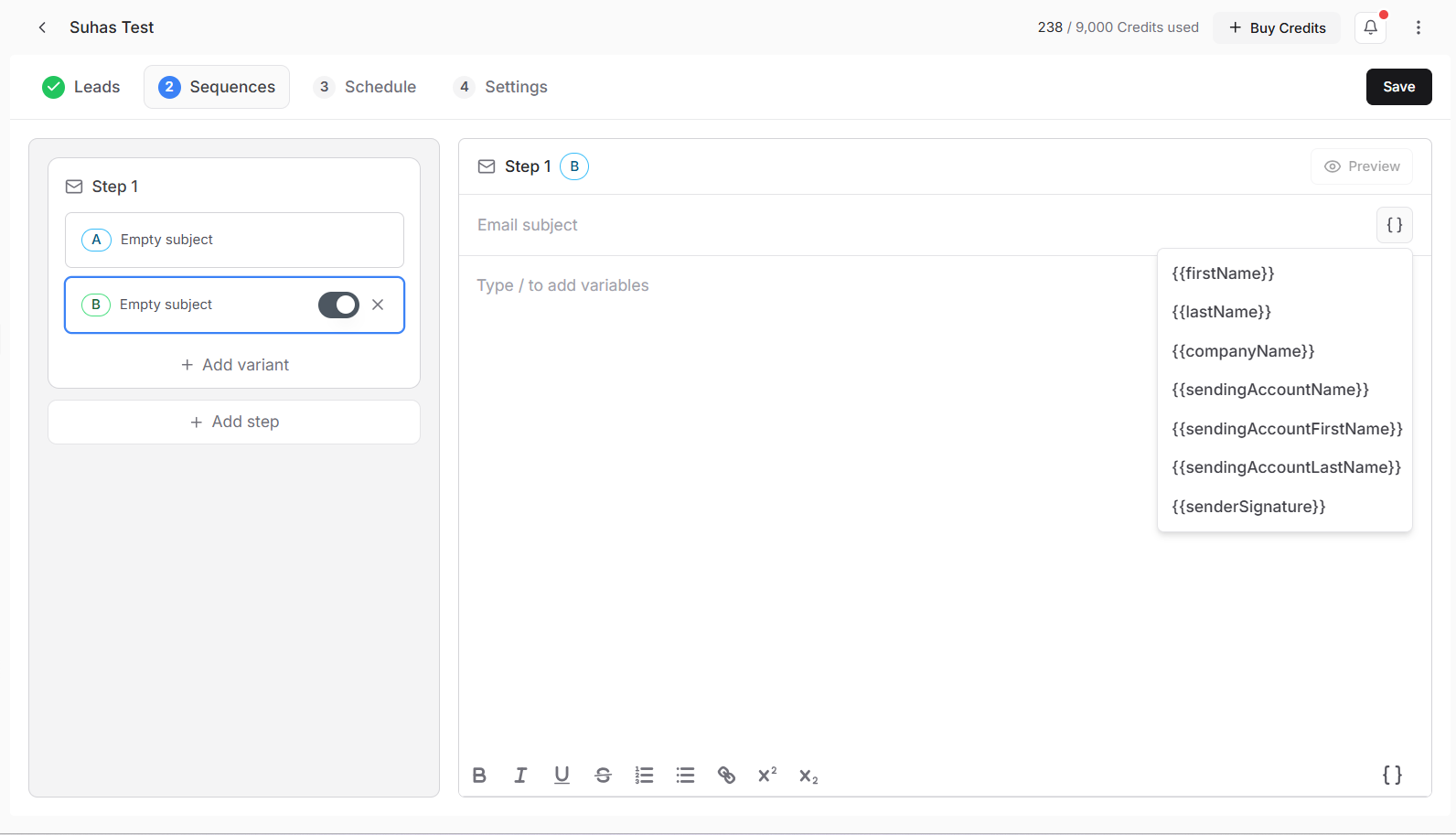
While composing your email, click the {} button or type / to insert personalization variables.
Common variables include:
First Name
Last Name
Company Name
Sending Account Name
Sending Account First Name
Sending Account Last Name
Sender Signature
When emails are sent, Stamina automatically replaces these placeholders with the appropriate information for each lead.
Add follow-up emails
Most successful outreach campaigns include multiple follow-up emails rather than relying on a single message.
Click Add Step to create another email in your sequence.
Each new step is a separate email template with its own:
Subject line
Email content
Follow-up delay
Variants
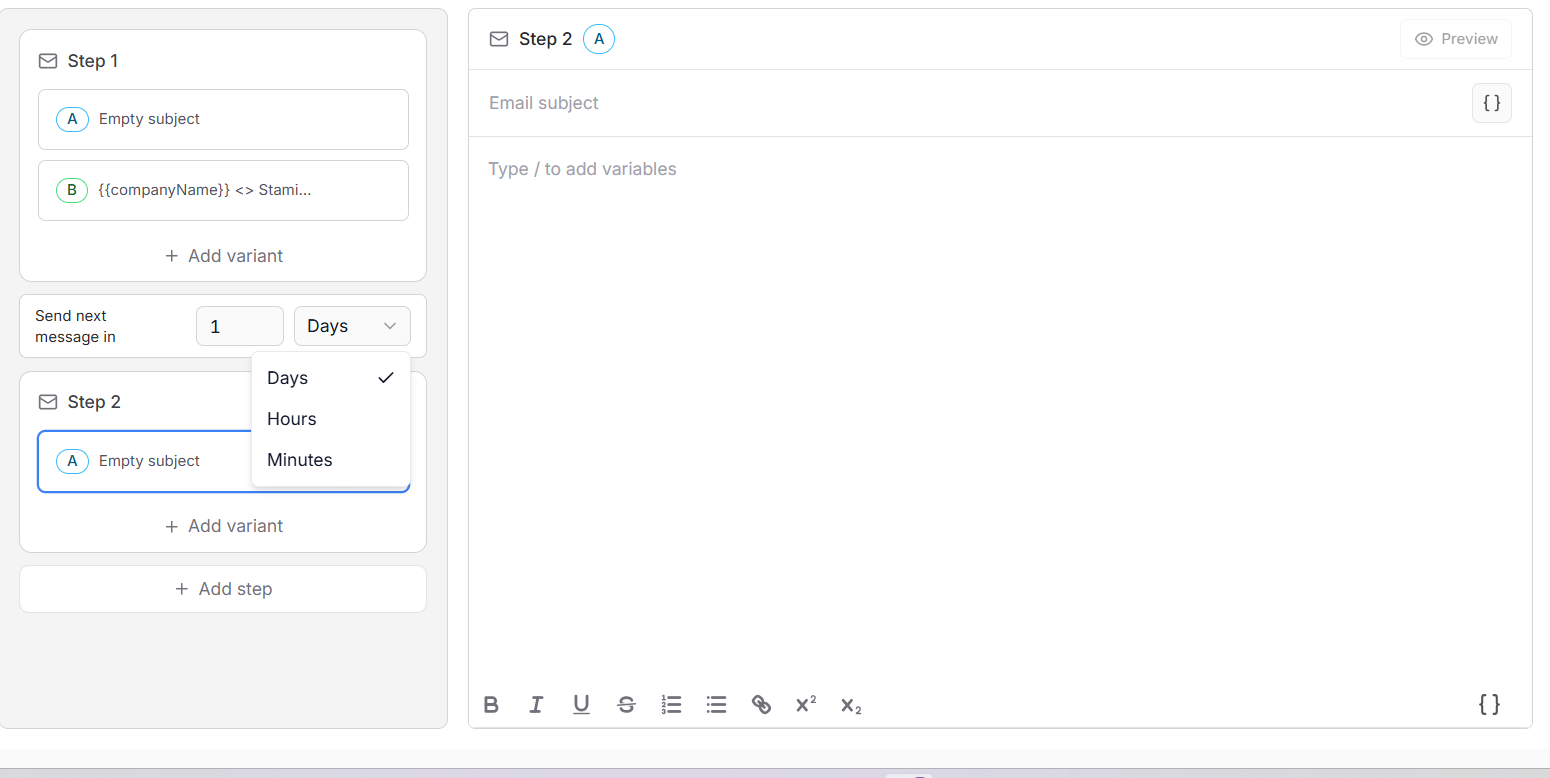
Before each follow-up is sent, configure how long Stamina should wait after the previous email. You can set the delay using:
Days
Hours
Minutes
For example:
Step 1: Initial outreach
Wait 2 days
Step 2: Follow-up email
Wait 3 days
Step 3: Final follow-up
Spacing your emails appropriately creates a more natural outreach cadence and helps avoid overwhelming recipients.
Create email variants
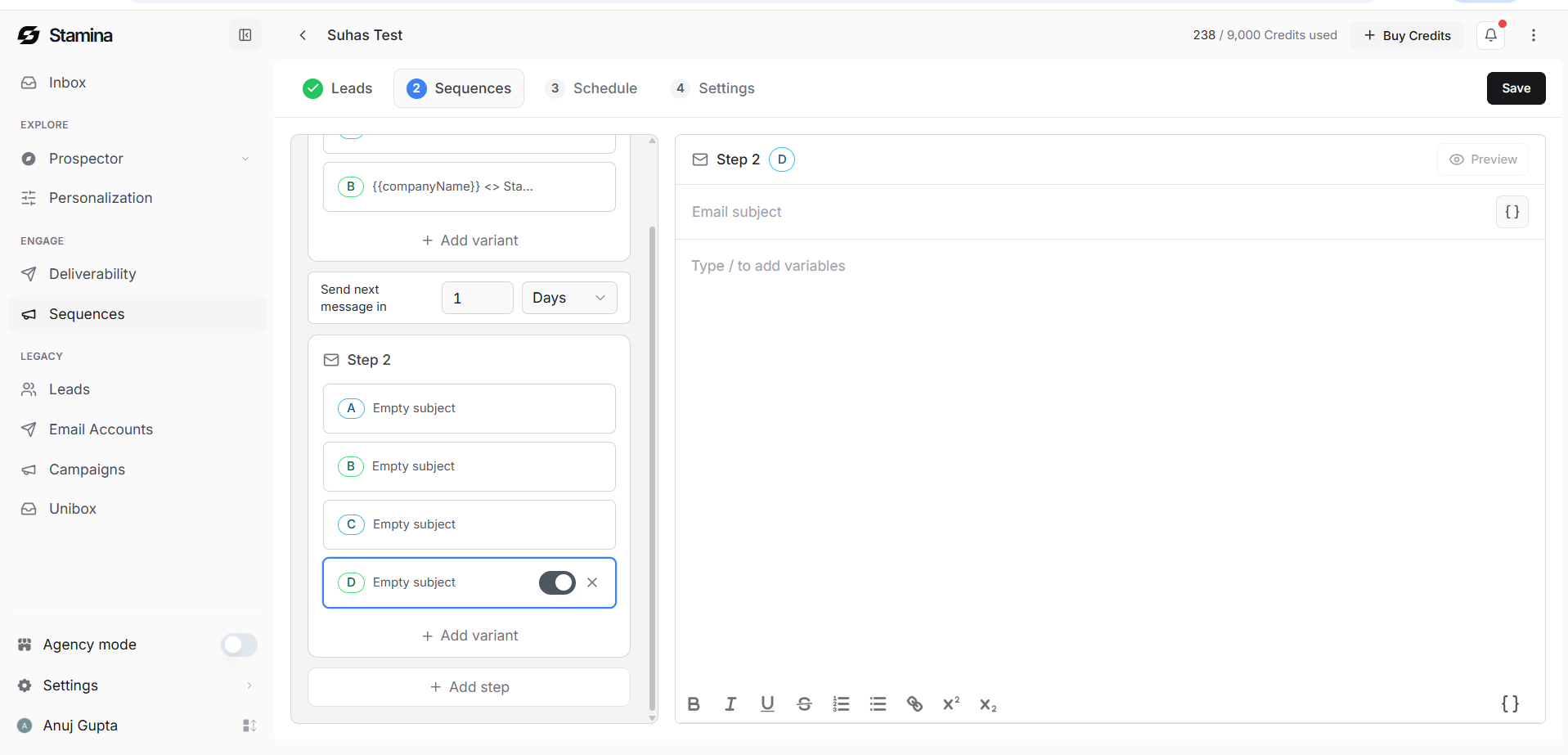
Every email step can include multiple variants.
Variants allow you to test different subject lines, messaging styles, or calls to action while keeping the same sequence structure.
For each step, you can:
Add additional variants.
Edit each variant independently.
Enable or disable individual variants.
Remove variants you no longer need.
Testing multiple variants helps you identify which messaging resonates best with your audience and can improve campaign performance over time.
Preview your emails
Before continuing, preview your emails to see how they'll appear to recipients.
The preview replaces personalization variables with actual lead information, allowing you to verify that names, companies, signatures, and other dynamic fields are displayed
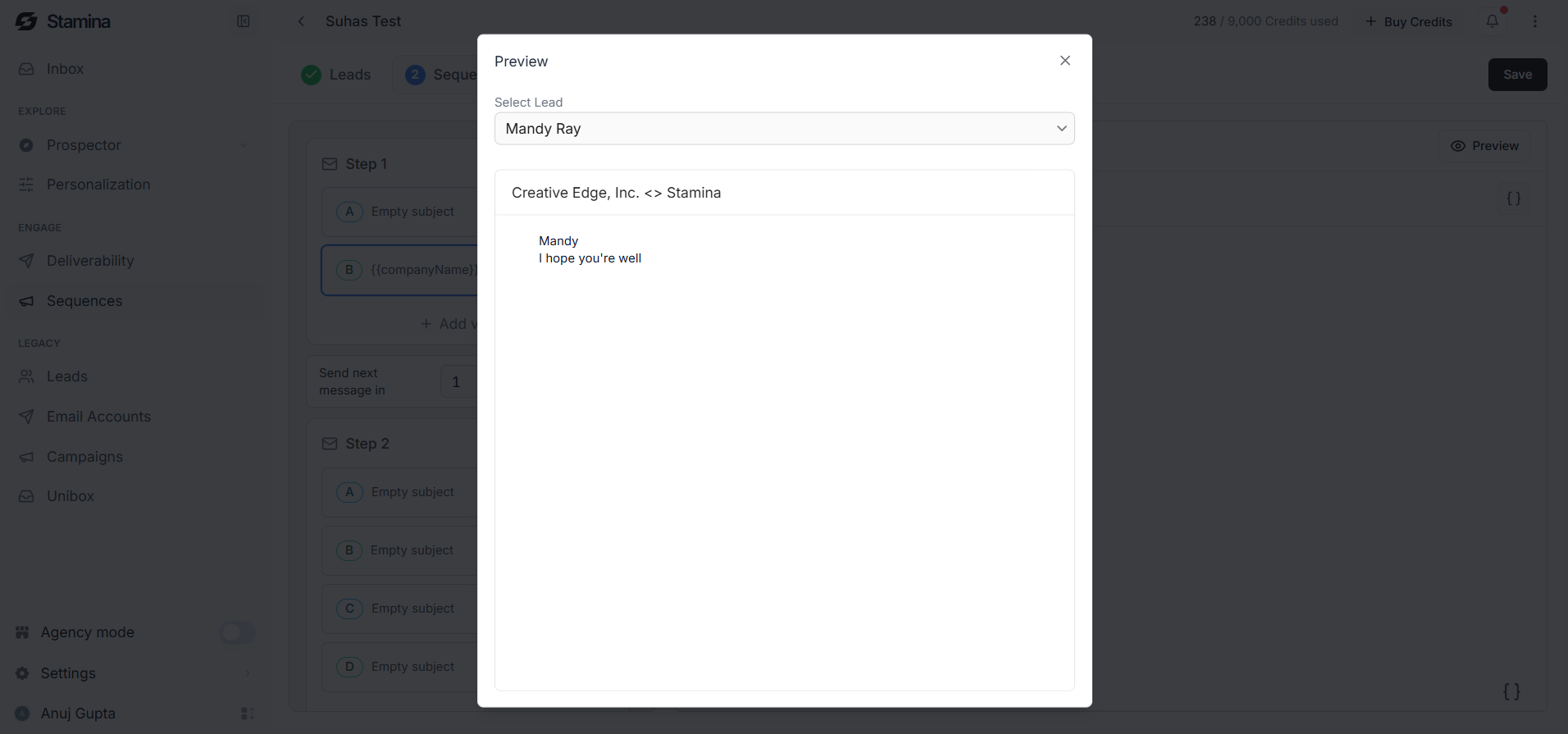
correctly.
Previewing your emails before launch also helps identify formatting issues and ensures your message appears exactly as intended.
Save your progress
Click Save at any time to preserve your work.
You can return later to continue editing your sequence before configuring the schedule and sending settings.
Best practices
Keep each email focused on a single message or objective.
Write subject lines that are clear and relevant to your audience.
Use personalization naturally rather than inserting variables into every sentence.
Give each follow-up a different purpose instead of repeating the previous email.
Test different messaging using variants to learn what performs best.
Review the timing between follow-ups to create a natural outreach cadence.
Preview every email before moving to the next stage.