Set Up Email Accounts
Last updated: July 12, 2026
Connecting an existing email account allows Stamina to send campaigns through your inbox while monitoring its health and warmup status.
If you don't already have dedicated outreach inboxes, skip this guide and continue to Set Up Done-for-you Email Infrastructure.
Screenshot: Deliverability page showing the New Account button.
Connect your Google account
Open Deliverability.
Click New Account.
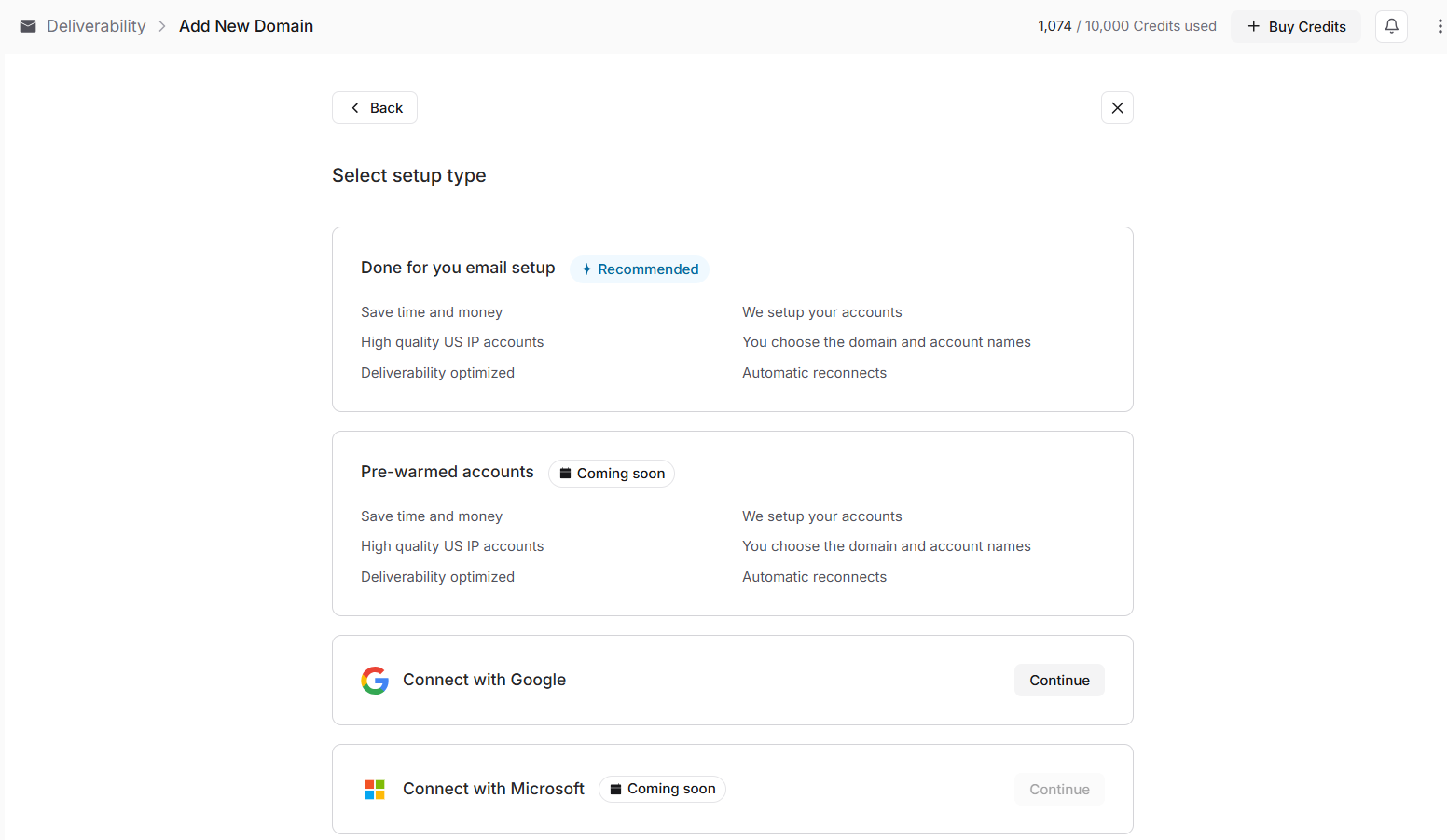
Select Connect with Google.
Stamina will guide you through the connection process.
Enable IMAP
Before your inbox can be connected, IMAP must be enabled in Gmail.
The setup wizard explains how to do this.
To enable IMAP:
Open Gmail.
Click Settings.
Select See all settings.
Open Forwarding and POP/IMAP.
Enable IMAP.
Save your changes.
After enabling IMAP, return to Stamina and continue.
Choose a connection method
Once IMAP has been enabled, choose how you'd like to connect your account.
OAuth
OAuth is the recommended option for Google Workspace accounts.
After selecting OAuth, sign in with your Google account and approve the requested permissions.
Screenshot: Google authorization screen.
App Password
If you're connecting a personal Gmail account, you can authenticate using a Google App Password.
Before using this option, enable two-step verification and generate an App Password from your Google Account security settings.
Finish connecting your account
Enter your sender details:
First name
Last name
Email address
If you're using an App Password, enter it when prompted.
Click Save to complete the setup.
Verify your connection
After saving, your inbox appears in Deliverability.
From there you can:
Edit your sender name
Update your email signature
Monitor inbox warmup
View campaign assignments
Organize inboxes with tags
As you add more inboxes, tags make it easier to organize accounts by team, region, client, or campaign.
Campaigns can send using tagged inboxes instead of selecting each account individually.
Screenshot: Deliverability table showing inbox tags.
Tip
If you add new accounts to an existing tag while a campaign is already running, those accounts are automatically included in the campaign's sending rotation. This allows you to increase sending capacity without updating the campaign.
Next steps
If you need dedicated outreach inboxes instead of connecting an existing mailbox, continue to 📄 Set Up Done-for-you Email Account