Troubleshooting Email Sending Issues
Last updated: July 12, 2026
If a campaign has stopped sending or is sending less than expected, work through these checks in order. Most sending issues have a straightforward cause.
1. Check account connection status
Go to Deliverablity. Disconnected accounts show a red error badge and stop contributing to campaign sends. Reconnect any disconnected accounts before checking anything else.

2. Check daily sending limits
Go to your Sequences → Campaign and Settings and verify the per-account and per-campaign daily limits. A limit of 0 — or no accounts assigned — will prevent all sends. Also check that your account-level limits haven't been reduced via Bulk Edit Settings.
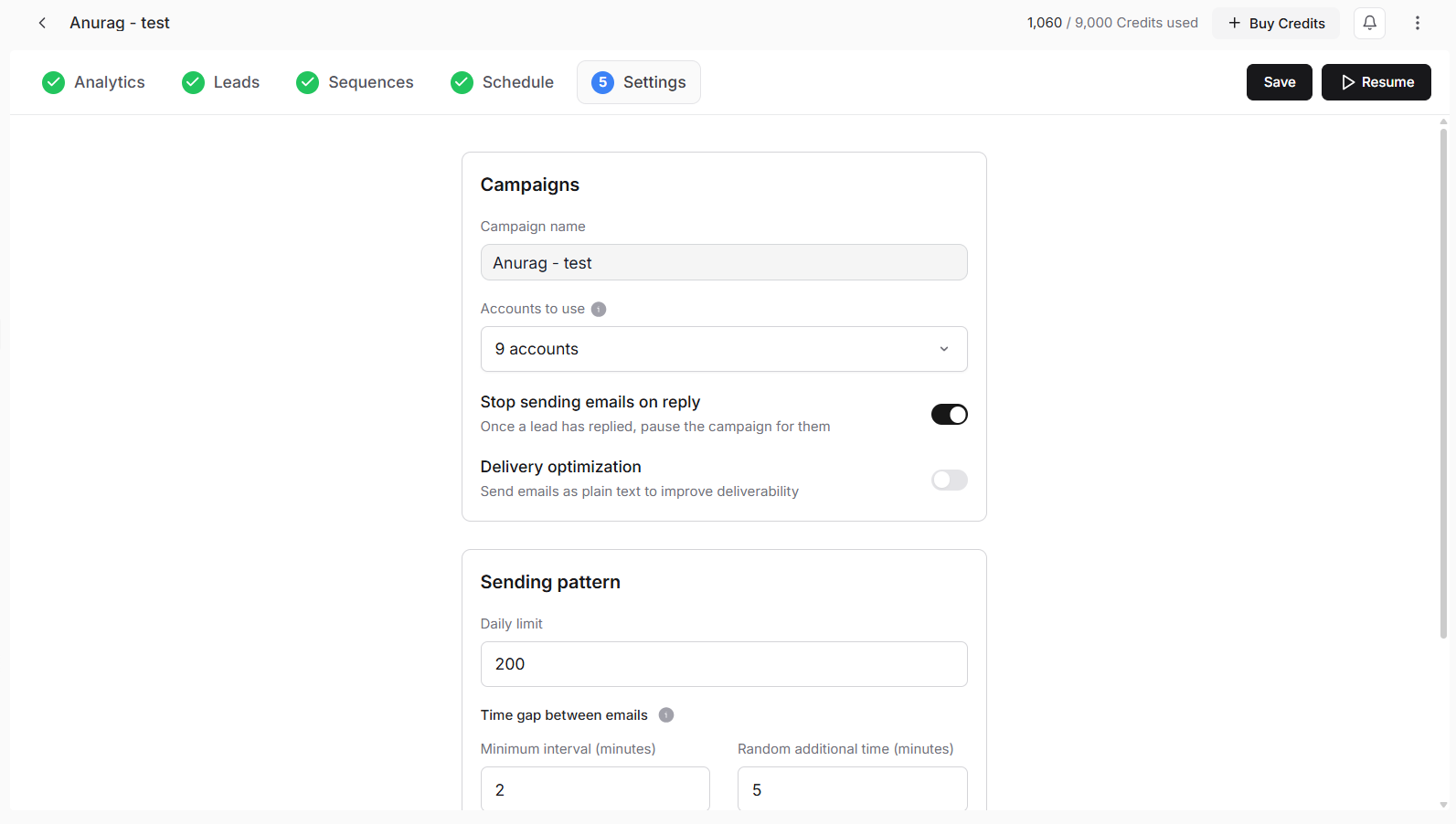
3. Check campaign status
The campaign must be in Active status to send. Paused campaigns hold all sends. Campaigns in draft have never been launched. Check the campaign status badge on the Campaigns overview page.
4. Check the sending schedule
In campaign Options, verify that:
Today's date falls within the campaign's start and end date range
The current time is within the configured sending window
The current day of the week is enabled in the schedule
5. Check lead status
In the campaign's Lead List, check whether leads are in a status that blocks sending — Bounced, Unsubscribed, or Removed. If all leads have a non-sending status, the campaign will appear active but send nothing.
6. Check for DKIM or authentication errors
In Email Accounts, look for any accounts showing DKIM or authentication errors. Emails from accounts with authentication failures may be rejected before reaching leads.
If none of the above resolves the issue, contact support via in-app chat or support@stamina.io with your campaign name and account email addresses.