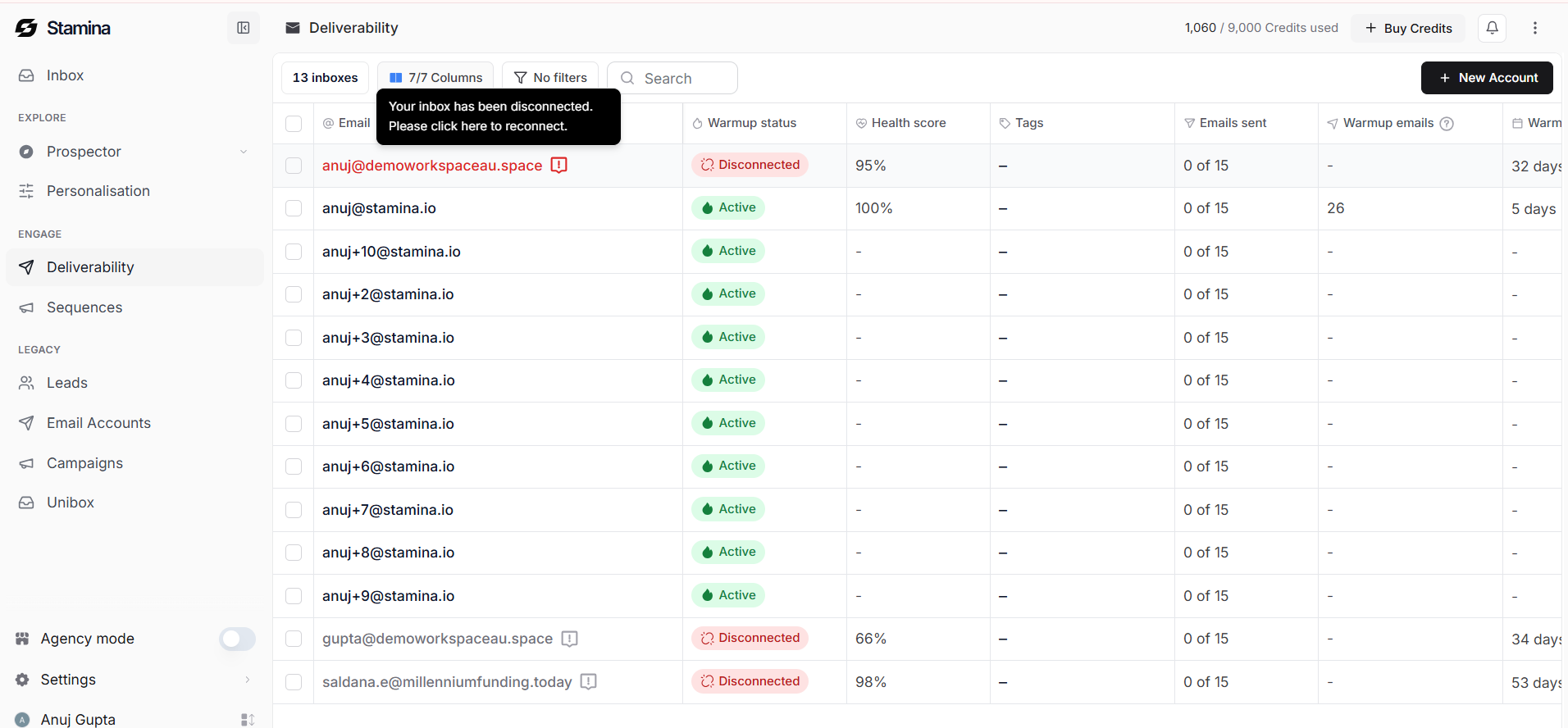
Fix a Disconnected Email Account
Last updated: July 12, 2026
Estimated reading time: 2 minutes
Overview
If your connected Google account becomes disconnected, Stamina cannot send emails, synchronize replies, or continue inbox warmup until the connection is restored.
You can reconnect your inbox from the Deliverability page.
Reconnect Your Inbox
To reconnect a disconnected inbox:
Open Deliverability from the left navigation.
Locate the inbox with a Disconnected status.
Click Reconnect.
Sign in to your Google account and complete the authorization process.
Wait for the inbox status to update to Connected.
Once reconnected, your inbox will resume sending campaigns, receiving replies, and continuing warmup automatically.
If Your Inbox Still Doesn't Connect
If you're unable to reconnect your inbox:
Make sure you're signing in with the correct Google account.
Verify that the Google account is still active.
Try reconnecting again after a few minutes.
Contact Stamina Support if the issue persists.
When contacting support, include:
Your workspace name.
The affected email address.
Any error message you received.